
Approvals Workflow Guide
The Approvals Section serves as the final gatekeeping stage where the Funder or CSR Team (the Checker) reviews and validates the data submitted by the Implementing Partner (the Maker). This process ensures that all organizational onboarding, project proposals, and financial requests meet the required standards before they are finalized in the system.
The Four Approval Categories
The platform categorizes approvals into four distinct sections to streamline the review process:
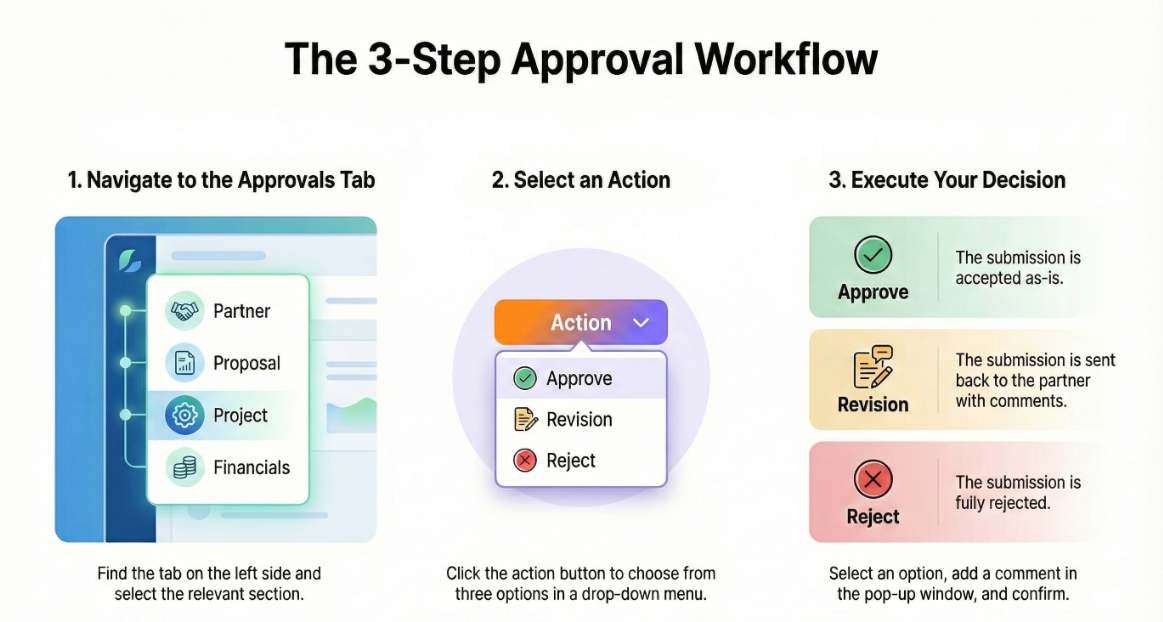
1. Partner Approval: Reviewing due diligence and onboarding documentation for the organization.
2. Proposal Approval: Verifying the initial project scope and thematic mapping.
3. Project Approval: Validating the live project details and monitoring parameters.
4. Financials Approval: Approving budget items, payment schedules, and disbursal requests.
Step-by-Step Approval Guide
To process a submission, the CSR Team/Funder must follow these steps:
1. Navigation
• Log in as a Checker (CSR Team/Funder).
• Locate the Approvals tab on the left-side navigation menu.
• Select the relevant section (Partner, Proposal, Project, or Financials) based on what needs review.
2. Review and Action Selection
• Review the data submitted by the Implementing Partner to ensure all information is accurate and compliant.
• Click on the Approve button, which provides a dropdown menu with three options: Approve, Revision, or Reject.
3. Executing the Decision
• To Approve: Select “Approve” from the dropdown if the submission is satisfactory. Click the button again, enter a mandatory comment, and click to confirm the approval.
• To Send for Revision: Select “Revision” if the submission requires changes. A pop-up will appear where you must enter a comment explaining what needs to be fixed. Click the button to send the request back to the Maker.
• To Reject: Select “Reject” if the submission is fundamentally flawed or does not meet the necessary criteria.
Summary of the Approvals Workflow
Step | Actor | Action | Outcome |
|---|---|---|---|
Submission | Maker | Clicks "Submit" in their respective module (e.g., Onboarding or Project Mapping). | The module is locked for the Maker and appears in the Checker's Approvals tab. |
Review | Checker | Navigates to the Approvals Tab and reviews the entries. | Checker determines if the data is sufficient. |
Decision | Checker | Selects Approve, Revision, or Reject from the dropdown. | Approve: Finalizes the process. <br> Revision: Unlocks the module for the Maker to edit. <br> Reject: Terminates the request. |