1. Introduction
This manual provides a step-by-step guide to managing unspent CSR amounts in the ImpactOne MIS system. It outlines the process to record, allocate, and disburse unspent funds across projects.
User: Admin
2. Admin Section Steps
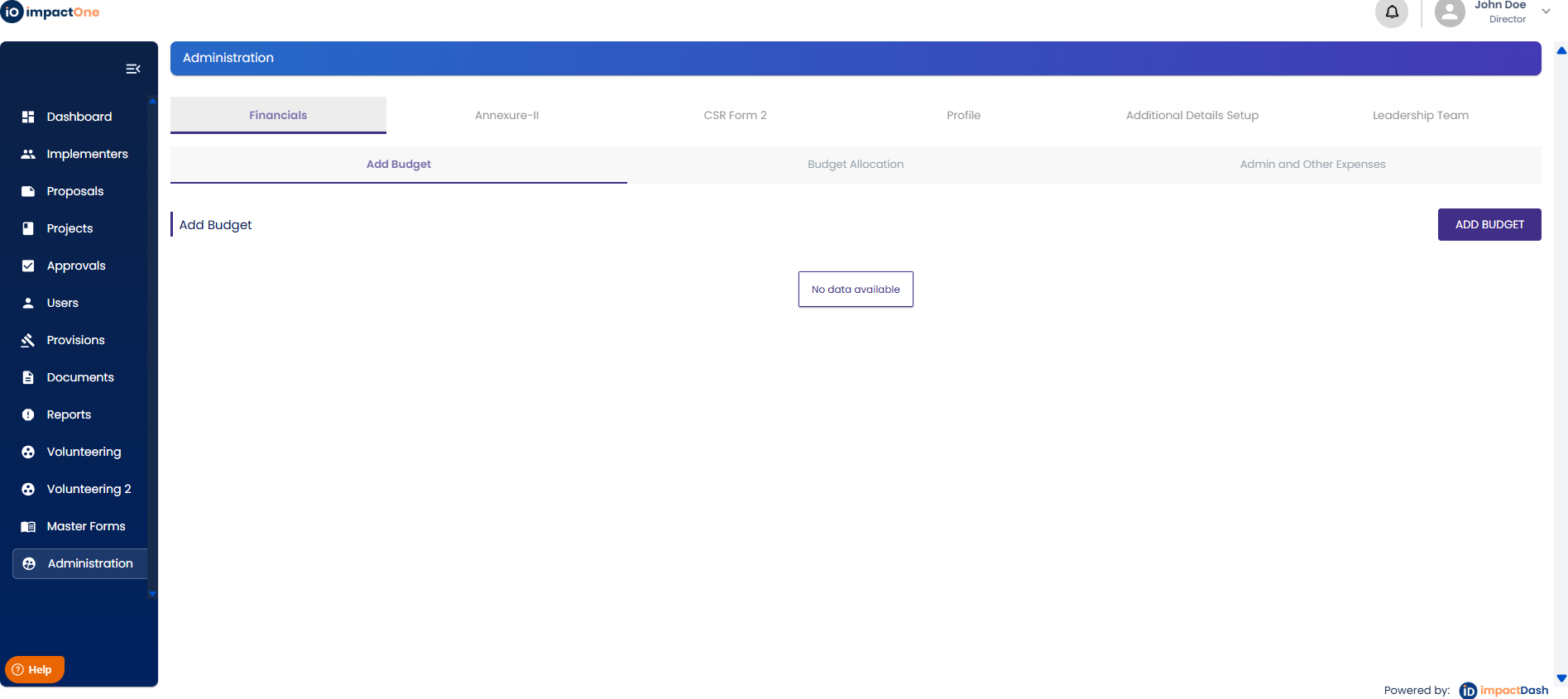
Step 1: Access Administration
Navigate to the “Administration” section from the menu on the left side.
Step 2: Add CSR Budget and Unspent Amount
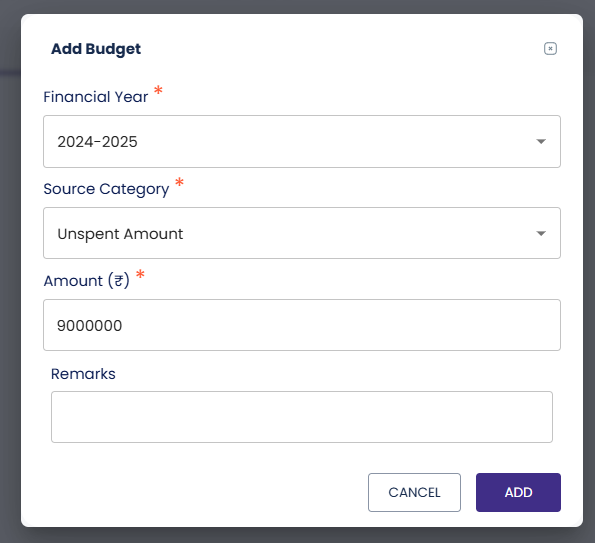
Create a new CSR budget for the financial year. Under the 'Add Budget' section, enter the unspent amount to record the funds carried forward from the previous year.
a) Click on "Add Budget" button

b) Enter the unspent amount of the particular Financial year and fill in the details as shown below.
3. Allocation of Unspent Amount
Step 3: Allocate to Projects
Allocate the recorded unspent amount to different projects as required. This can be done from the administration panel by distributing the unspent funds for LIVE projects.
a) Allocate the Budget by Clicking on the "Allocate Budget" button.
b) Fill the details in of the unspent amount in which project you want to allocate the funds to.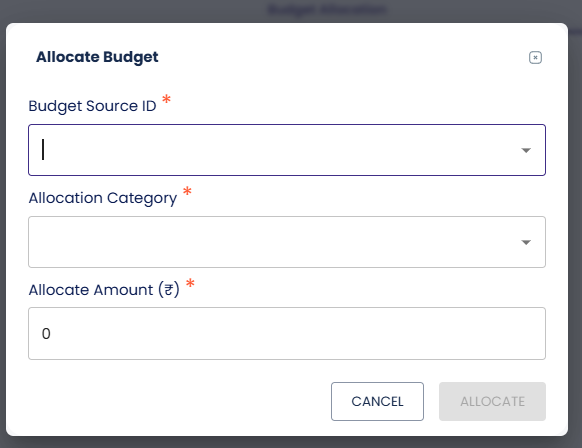
User: Checker
4. Project Section Steps
Step 4: Access Project Financials
Go to the specific project where the unspent amount will be utilized. Navigate to the 'Financial' section within the project.
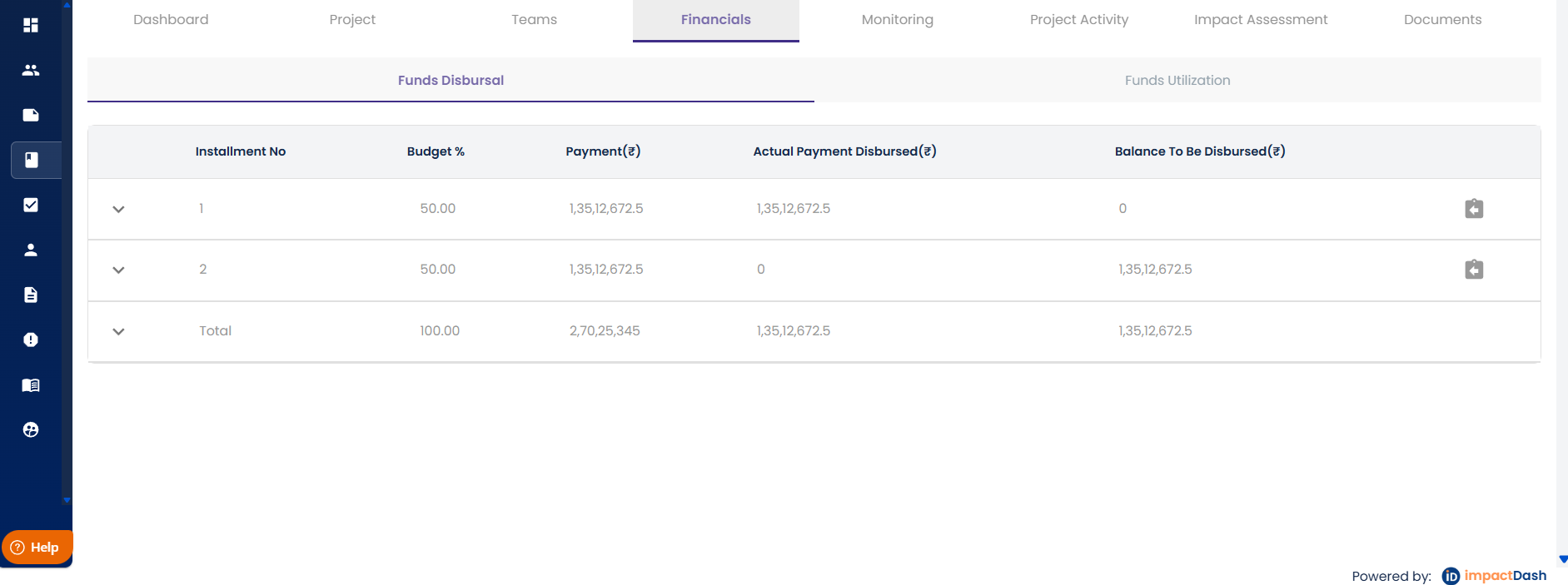
Step 5: Fund Disbursal
Within the financial section, select 'Fund Disbursal' and then choose the 'Installment' option.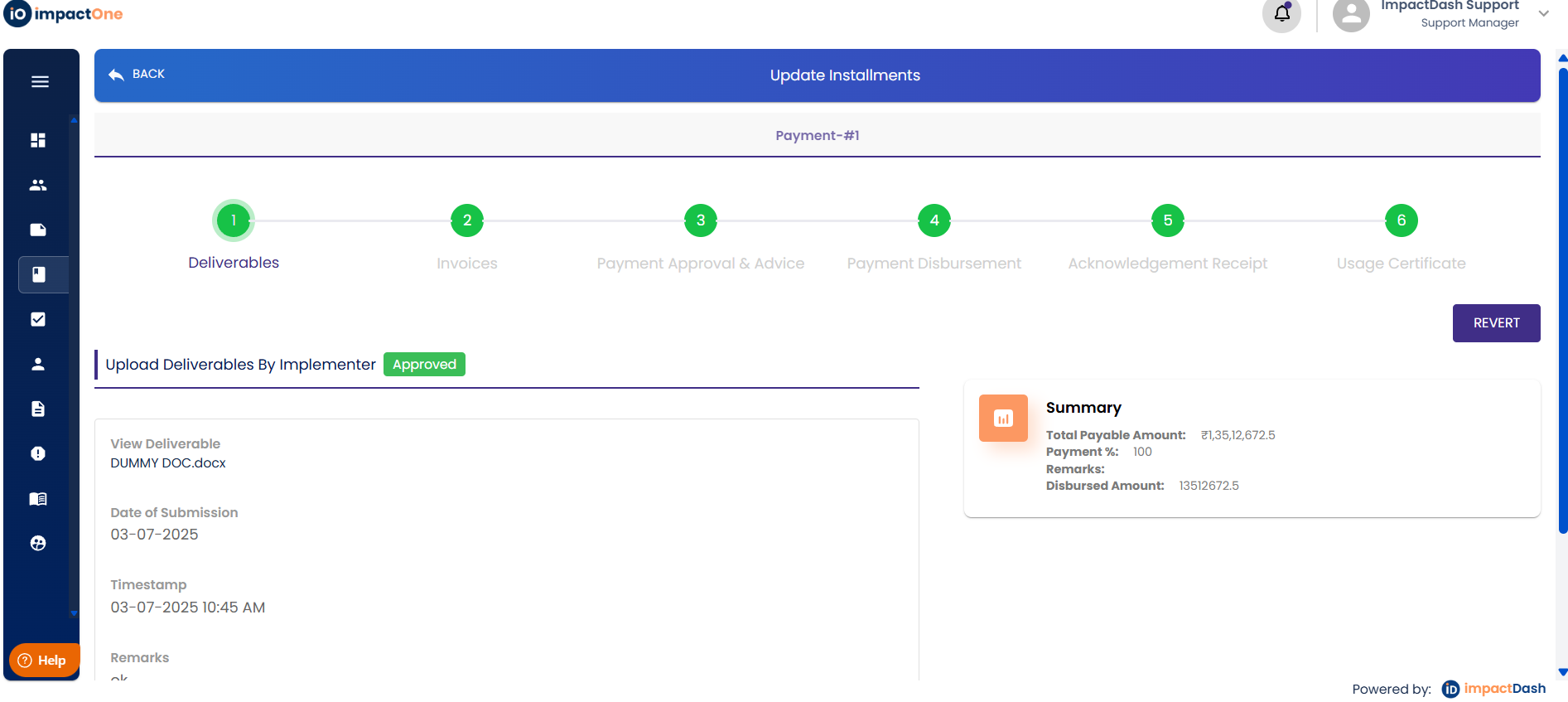
Step 6: Choose Source and Disburse
In the instalment section, the checker will have the option to disburse funds from the source category which is either the ' CSR Obligation' or 'Unspent Amount' from the previous years.
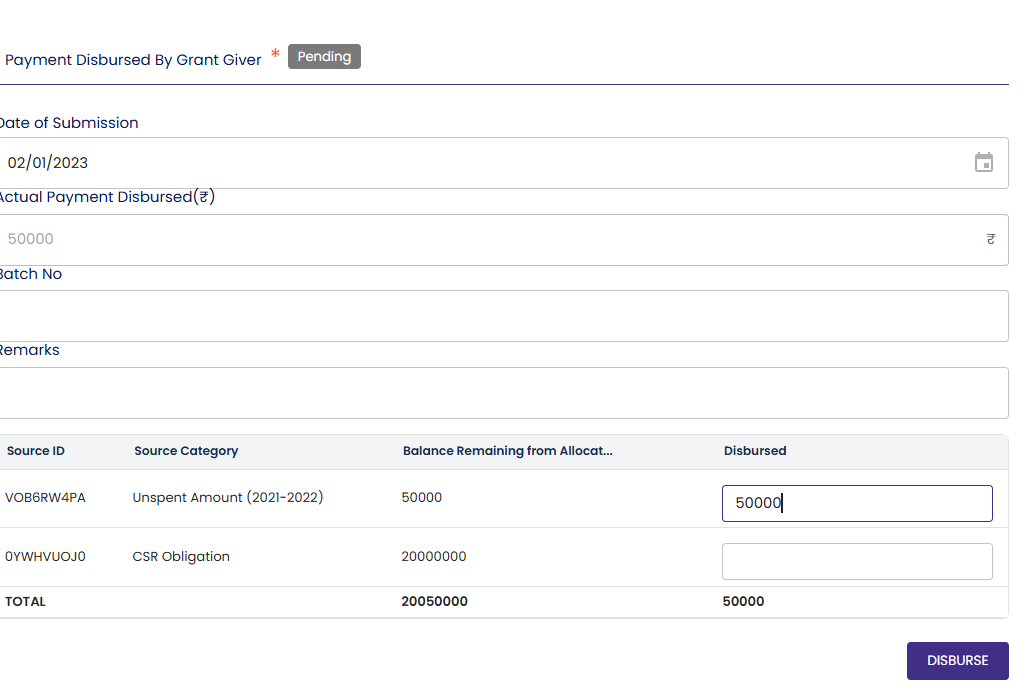
Select the 'Unspent' source category and input the amount to be disbursed from the unspent. Complete the disbursal process to reflect the total amount in the dashboard.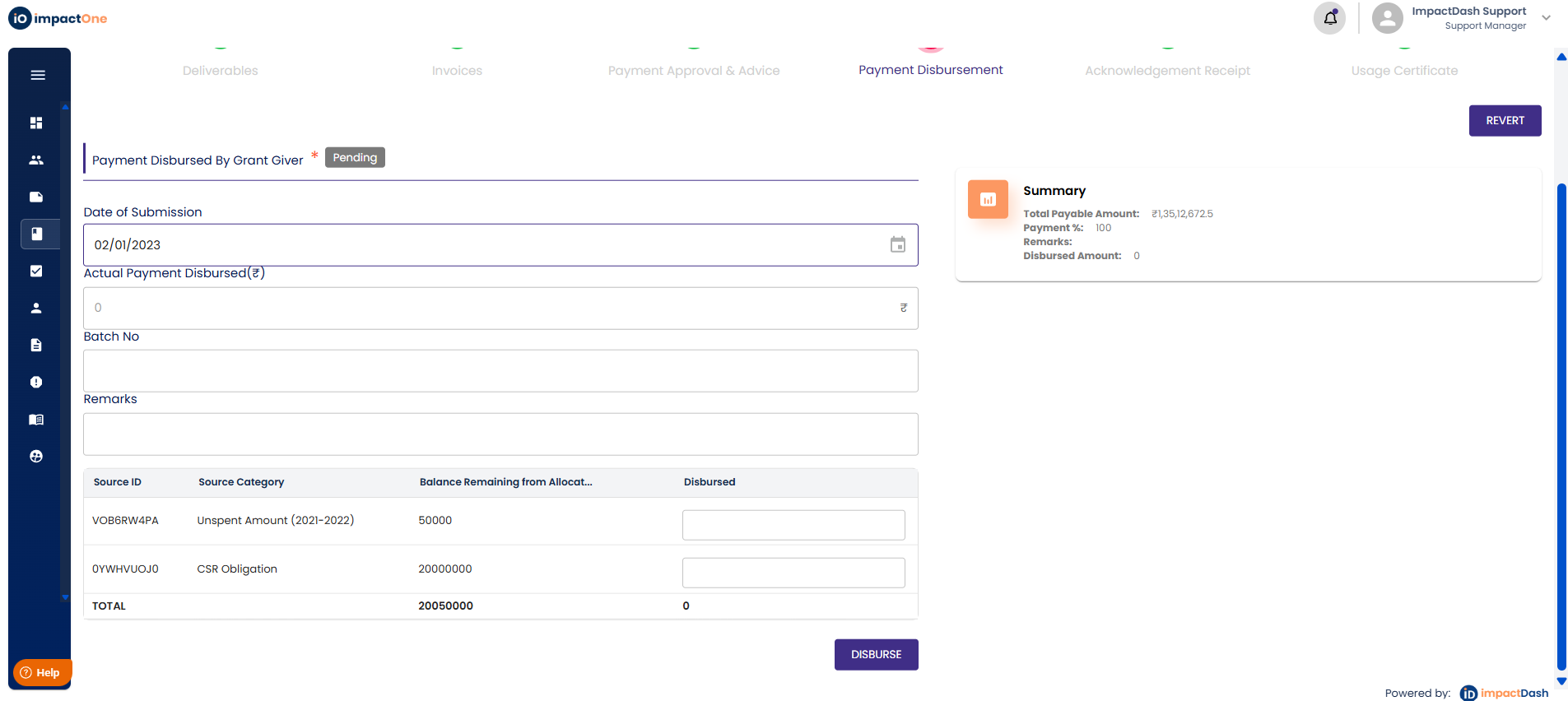
a) Add the unspent amount in the given box and Click on the " Disbursed" button to disburse the unspent amount.
6. Funds Utilization
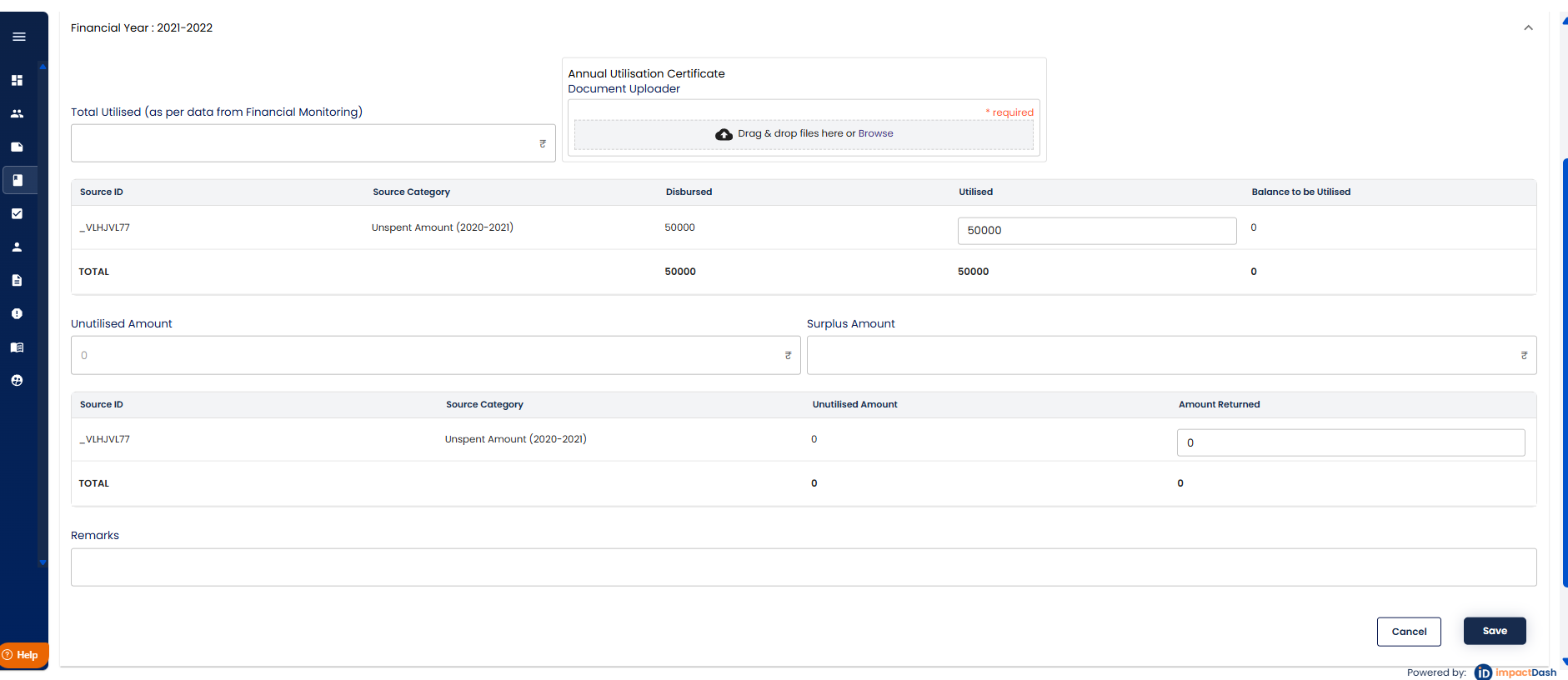
Once the funds are disbursed, add the utilization certificate and annual utilization.
a) Navigate to Funds Utilization tab under Financials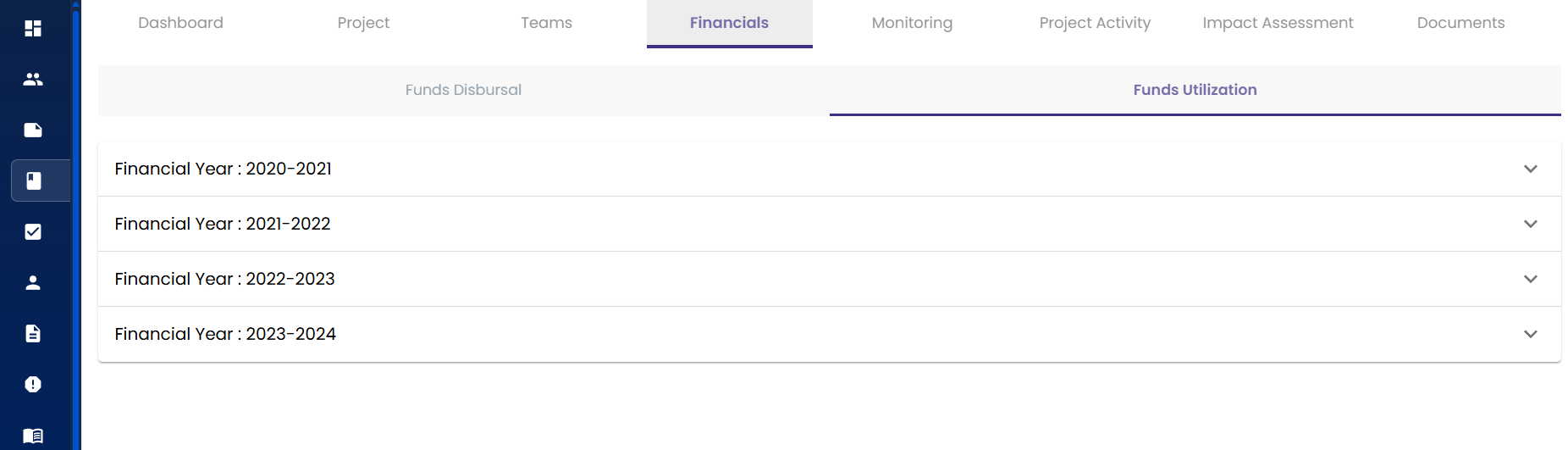
b) Select the financial year you want to enter the utilization for and enter the utilized amount, along with the utilization certificate document and the other details like the surplus and return (if applicable) and save.