
��Release Notes
Introducing Our Latest Product Release!
We're thrilled to unveil the newest update to our product designed to elevate your experience. This release is the culmination of our dedication to innovation and your feedback, ensuring that our platform continues to meet and exceed your expectations. Let's explore what's new!
�� Introduction:
We are excited to announce the latest release of ImpactOne. This release includes a number of new features, improvements that will enhance your experience and help you achieve your goals more efficiently.
We appreciate your feedback and suggestions, and we have listened carefully to your needs and preferences to bring you the best possible product. We hope you enjoy the new features and enhancements, and we look forward to continuing to improve our product to meet your needs.
⚙️ Features & Enhancements:
Proposal/Project<Budgeting<Location wise Distribution
When no location is selected while filling in data for budgeting, a row is visible for the data, but the amount is not reflected under the location-wise distribution under budgeting.
Rename user : The role of "partner project manager" has been renamed to the role "Manager [implementer]"
Partner Admin Access : The access to Partner Admin for all proposals and projects for his/her organisation
Invite Grant Giver :
Invite Grant Givers
Tabs on Organisation Page
Divide the Organisation Page as follows:
For Funders
Implementers
For Builders
My Organisation [Format same as Implementers but no invite button. Only 1 org details/ self org can be added]
Grant Givers
Both Funder and Builder
My Organisation>Implementers> Grant Givers
Invite Buttons
Click ‘Invite Grant Giver’ button inside Grant Givers Tab
On clicking ‘Invite Grant Giver’ button, a popup shows to capture the following fields:
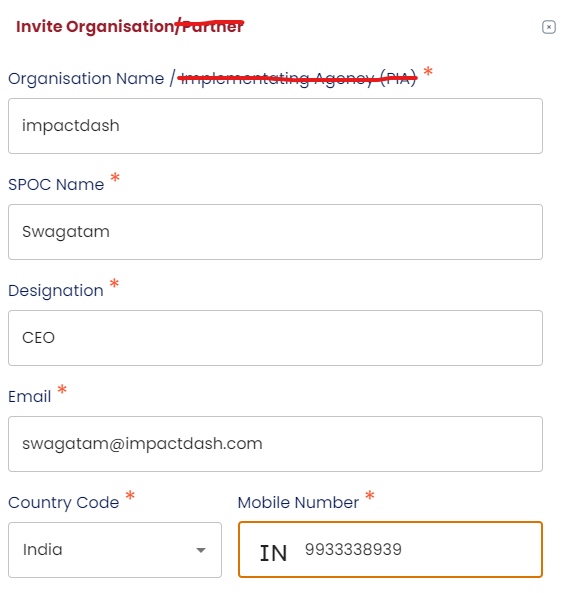
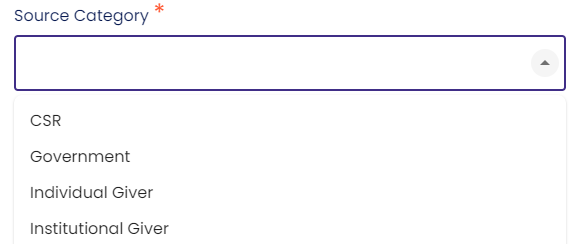
Add another dropdown field: Grant Giver Category
The values in this dropdown will be as shown below:
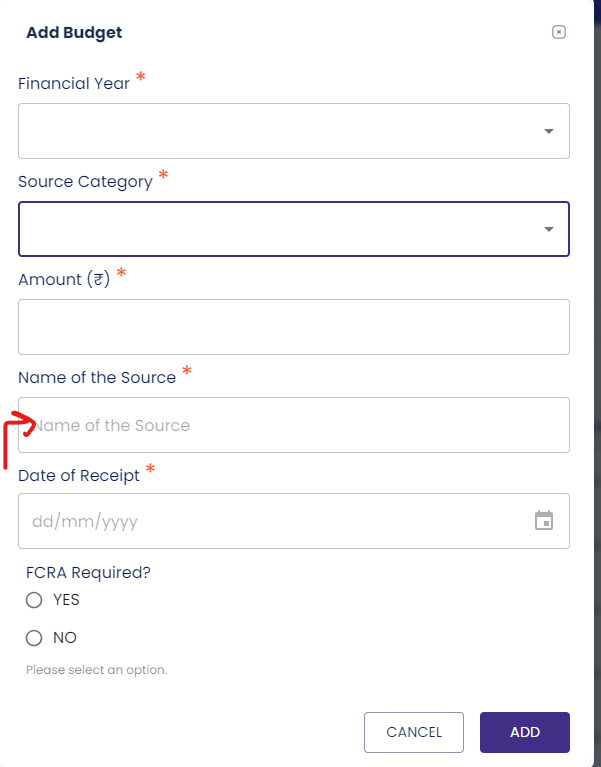
Changes in Add Budget under Administration
Name of the source to be a dropdown if CSR, Government , Individual Giver or Institutional Giver is selected in the Source category dropdown
User Section and Roles
The email id that is used when a grant giver organisation is added gets the role as Admin [Grant Giver]
Admin [Grant Giver] can add “User [Grant Giver]” from the user section.
Only difference in roles and permission between Admin [Grant Giver] and User [Grant Giver] is that Admin can add more users but others can't.
Main Menu for Grant Giver
Grant giver can only see the following in the main menu
1. Project
2. User
Grant Giver: Project Listing
A grant giver can see only those projects in the listing page where funds are allocated under its name in the Allocation page under administration.
Access to project parts
Grant giver will only have view access to all parts of the project except the Activity feed. Grant giver can create and interact with posts in activity feed
⚙️ Support:
For support, please contact our customer service team at
support@impactdash.com or alternatively you can also reach us through our Help Section within the App!