
Beneficiary Section -impactOne
Beneficiary manual, which comprehensively outlines the process and steps involved in managing beneficiaries on impactOne. This manual serves as a handy guide for navigating through the beneficiary section and provides detailed instructions on various tasks, including enrollment, updating, and approval of beneficiaries.
Guide to Fill Beneficiary Details in the Beneficiary Section:
Part I: Add Batch
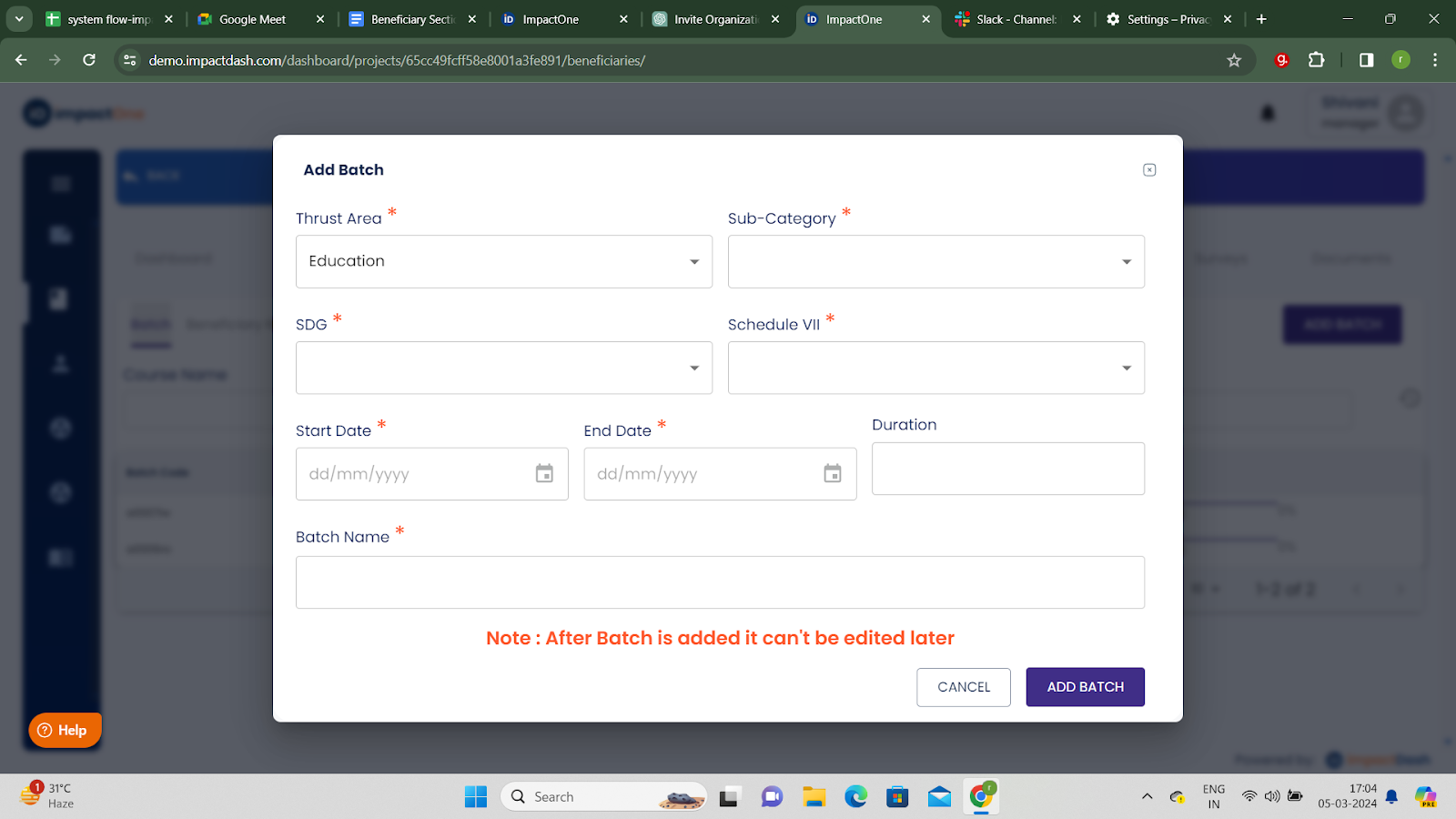
Accessing the Beneficiary Section: Navigate to the Projects tab and locate the Beneficiary section.
Adding a Batch: Click on the "Add Batch" button located on the right side of the screen.
Selecting Thematic Area: Choose the relevant thematic area from the dropdown menu.
Choosing Subcategory and SDGs: Similarly, select the appropriate subcategory and SDGs from their respective dropdown menus.
Setting Batch Dates: Enter the start and end dates for the batch.
Naming the Batch: Provide a descriptive name for the batch.
Click on the "Add Batch" button to finalise and add the batch.
Part II : Add Beneficiary
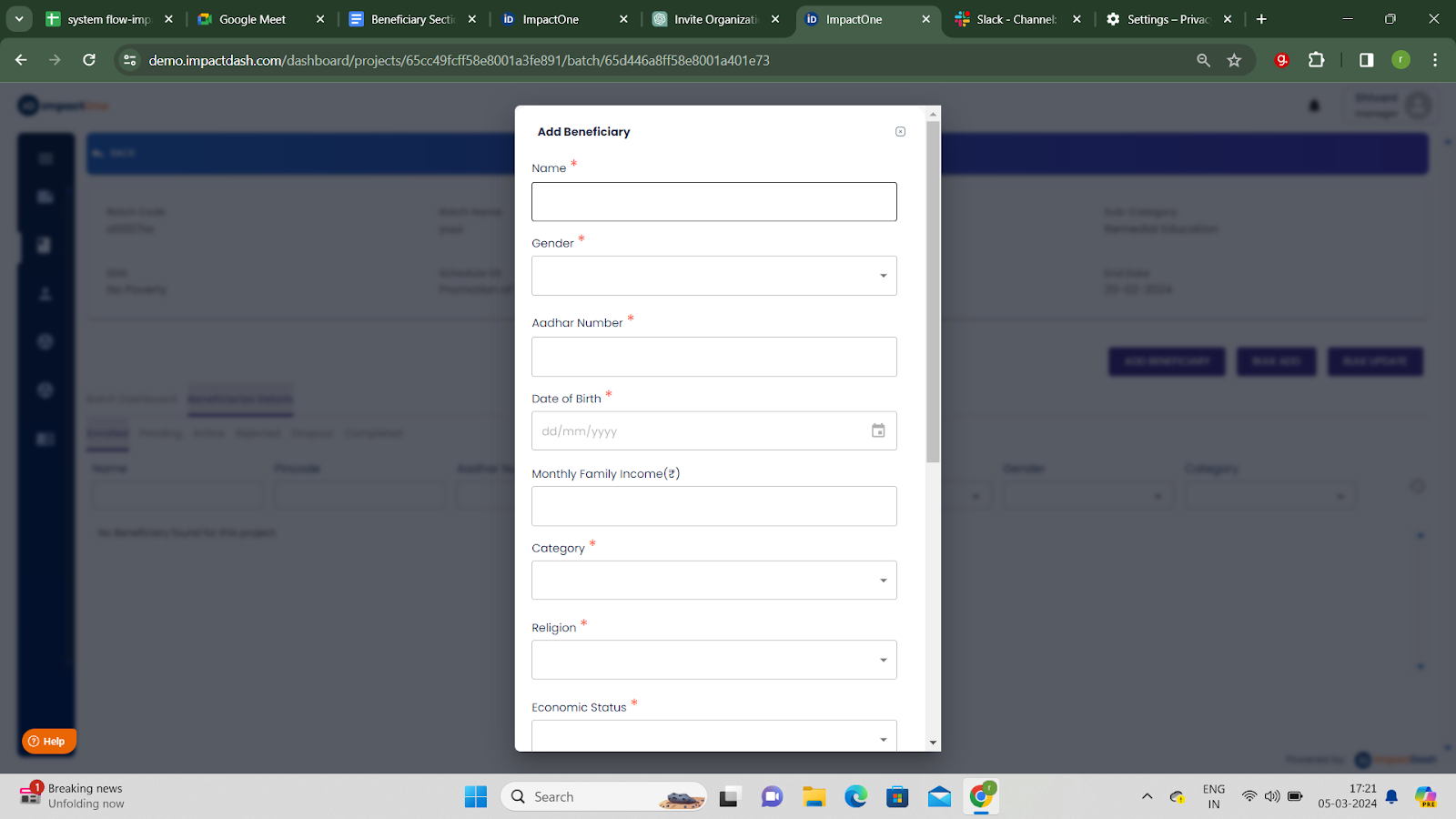
Accessing Batch and Adding Beneficiary: Once a batch is added, click on the batch name to access it. Then, click on the "Add Beneficiary" button located at the top right corner of the screen.
Initiating Beneficiary Entry: Fill in the beneficiary data by typing the name and selecting the gender from the provided options.
Entering Additional Details: Enter the Aadhar number, date of birth, and other required details of the beneficiary. Ensure to fill in all the mandatory fields marked with a "*" sign.
?NOTE:Adding the Aadhar Card Number as a mandatory identifier for beneficiaries ensures that each beneficiary is uniquely identified in the system and helps prevent duplication.
Completing Beneficiary Entry: Once all mandatory details are added, click on the "Add Beneficiary" button to finalise the entry.
Proceeding to Next: After adding the beneficiary, proceed to the next step or batch as required.
Part III: Add Bulk
Guide to Bulk Add Beneficiary Details:
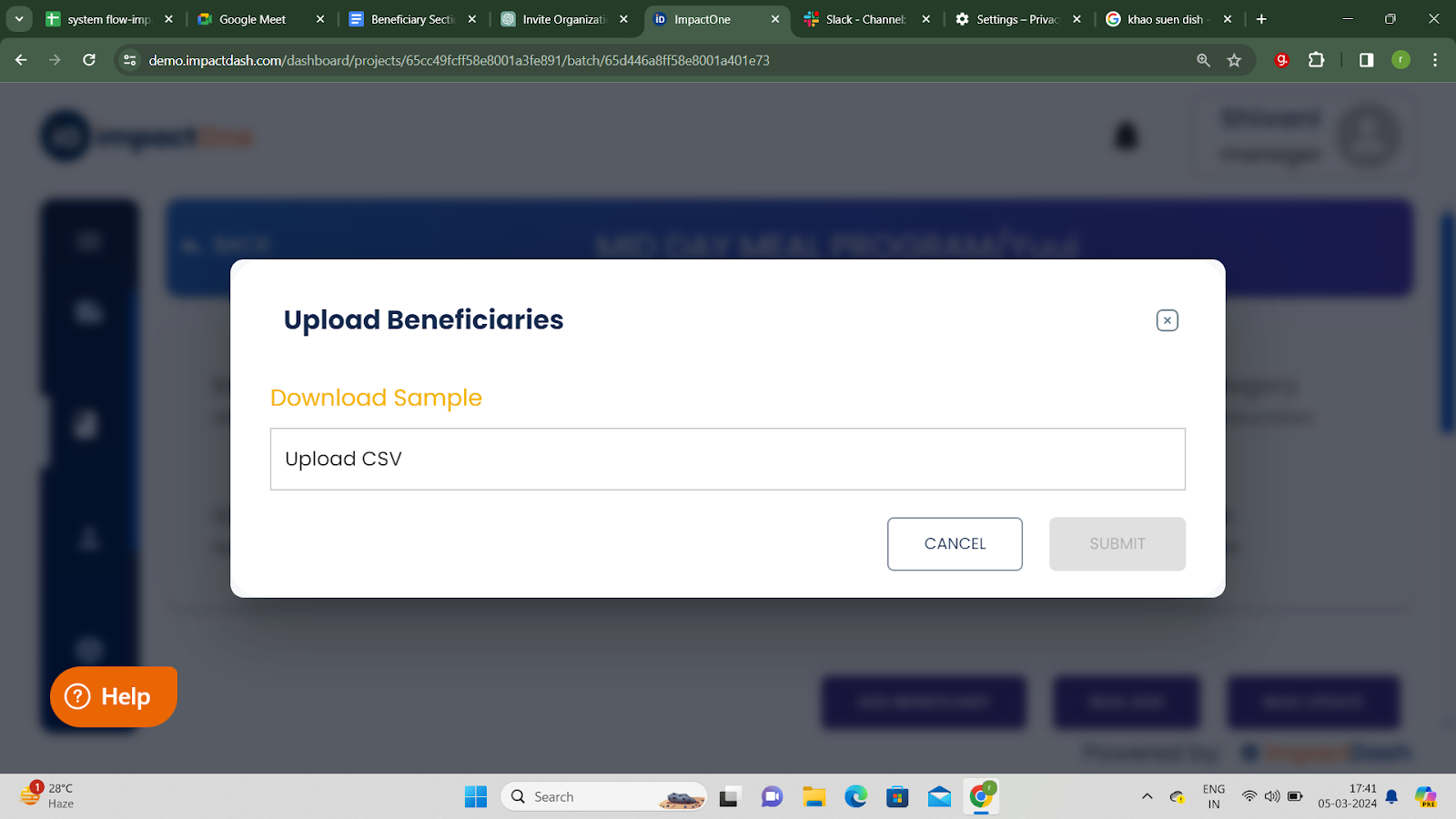
Accessing Bulk Add Feature: Click on the "Bulk Add" button located on the right side of the screen.
Downloading Sample Template: Next, click on the "Download Sample" button to download a sample CSV file template.
Adding Beneficiary Details in CSV File: Open the downloaded CSV file and add the beneficiary details in bulk according to the sample format. Ensure to fill in all required fields accurately.
Uploading CSV File: After adding the beneficiary details, save the CSV file. Then, upload the saved file by dragging and dropping it into the designated "Upload CSV" box or by using the provided file upload button.
Verification and Completion: The system will verify the uploaded data and process it accordingly. Once completed, the bulk-added beneficiary details will be successfully integrated into the system.
?NOTE: Follow these instructions while filling data in the CSV file.
Delete the reference data in row no 2 from the CSV before filing the actual beneficiary data.
For entries in the column titled "Aadhar number", enter a 11 digit number starting with ‘A. (the first number after "A" shouldn’t be starting with 1’)
Enrollment ID is system generated, please leave it blank.
Part IV: Bulk Update
Guide to Bulk Update Enrolled Beneficiaries:
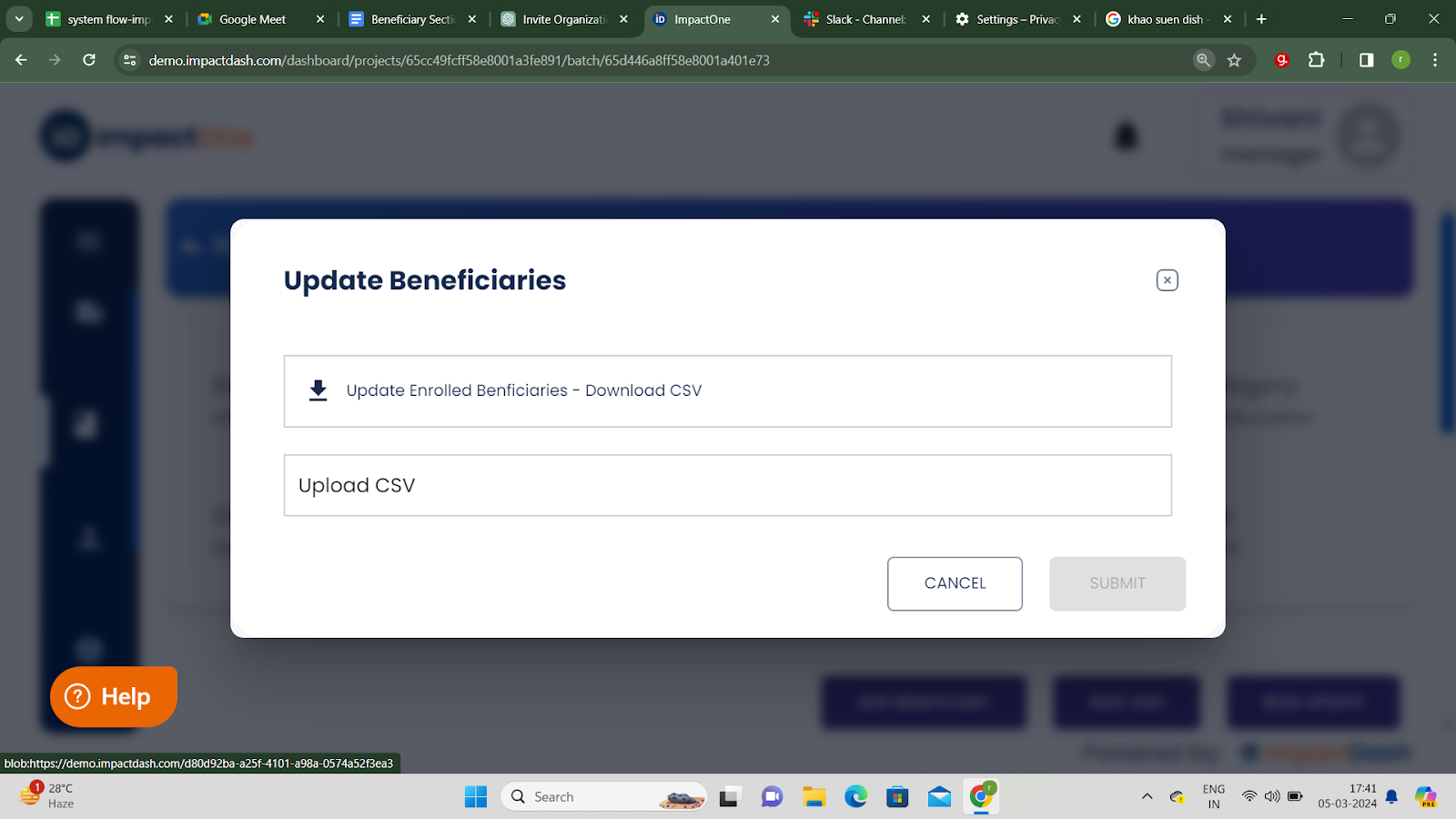
Accessing Bulk Update Feature: Click on the "Bulk Update" button located on the right side of the screen.
Downloading CSV Template: Next, click on the "Download CSV" button to download the CSV template containing enrolled beneficiary details that need to be updated.
Updating Beneficiary Details in CSV File: Open the downloaded CSV file and update the beneficiary details as required. Make changes or additions to the necessary fields while ensuring accuracy.
Saving Updated CSV File: After updating the beneficiary details, save the CSV file with the changes made.
Uploading Updated CSV File: Once saved, upload the updated CSV file by dragging and dropping it into the designated "Upload CSV" box or by using the provided file upload button.
Completing the Process: After verifying the updated details, proceed with the upload process. The system will process the updated beneficiary information accordingly, and the changes will be reflected in the system.
Part V: Approve Beneficiary
After enrolling beneficiaries, follow these steps to send them for approval:
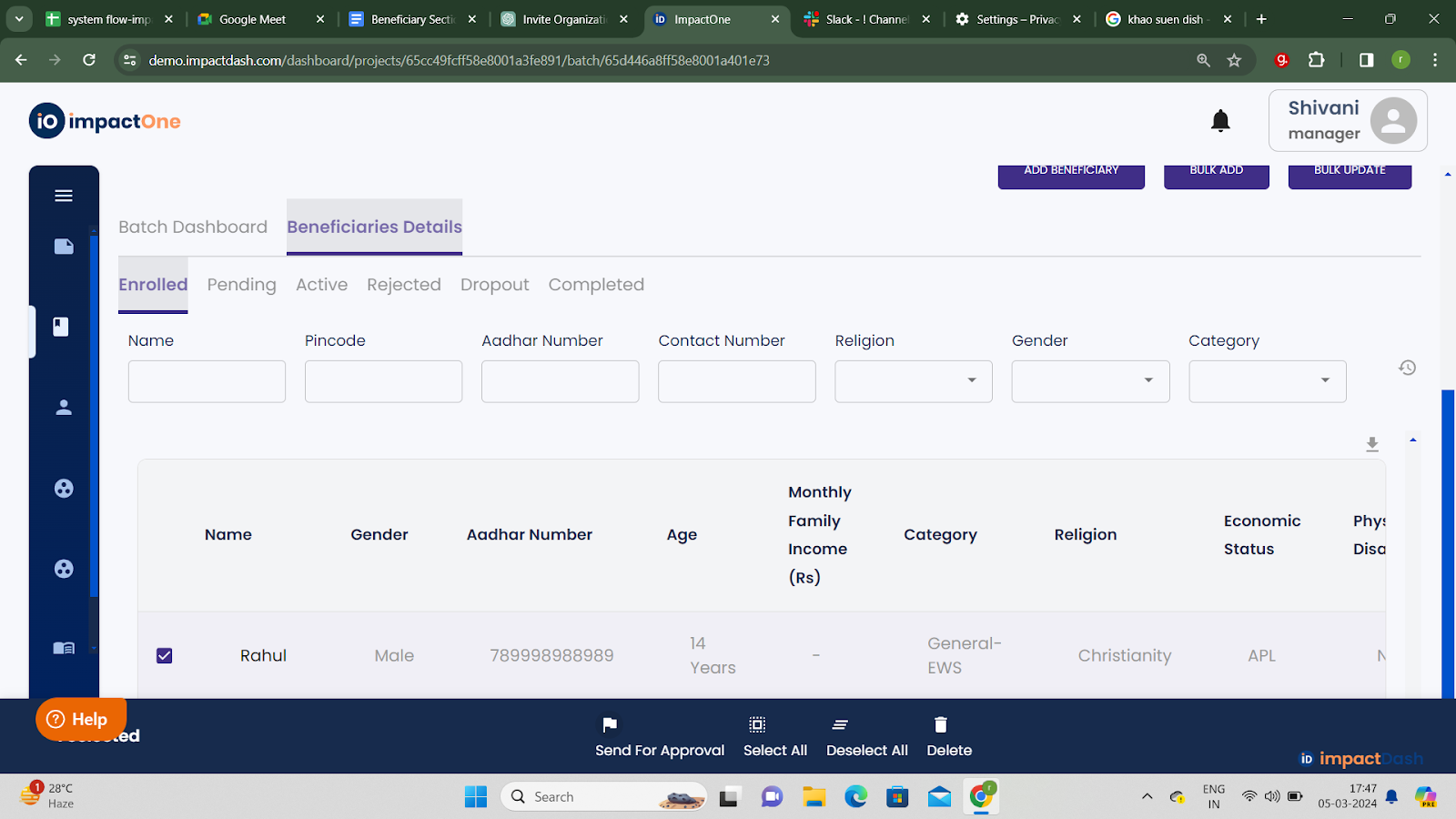
Select Beneficiaries: Tick the checkboxes next to the beneficiaries you wish to send for approval. Alternatively, use the "Select All" option to choose all beneficiaries.
Send for Approval: After selecting the beneficiaries, locate the "Send for Approval" button on the screen. Click on this button to initiate the approval process for the selected beneficiaries.
Pending Approval:When you send the beneficiaries for approval, it shows in “pending” as its pending for approval
Status Update: Monitor the status of the approval process to track when the beneficiaries are approved.
Active Beneficiary: Once the beneficiaries are approved, the status will change from “Enrolled” to “Active”