
Financial Disbursal
User: Maker and Checker (Both can add payments)
After the project is LIVE, the financial disbursal steps needs to be filled by the implementer and the funder approves those steps. Once the steps are completed, the payment is considered as disbursed.
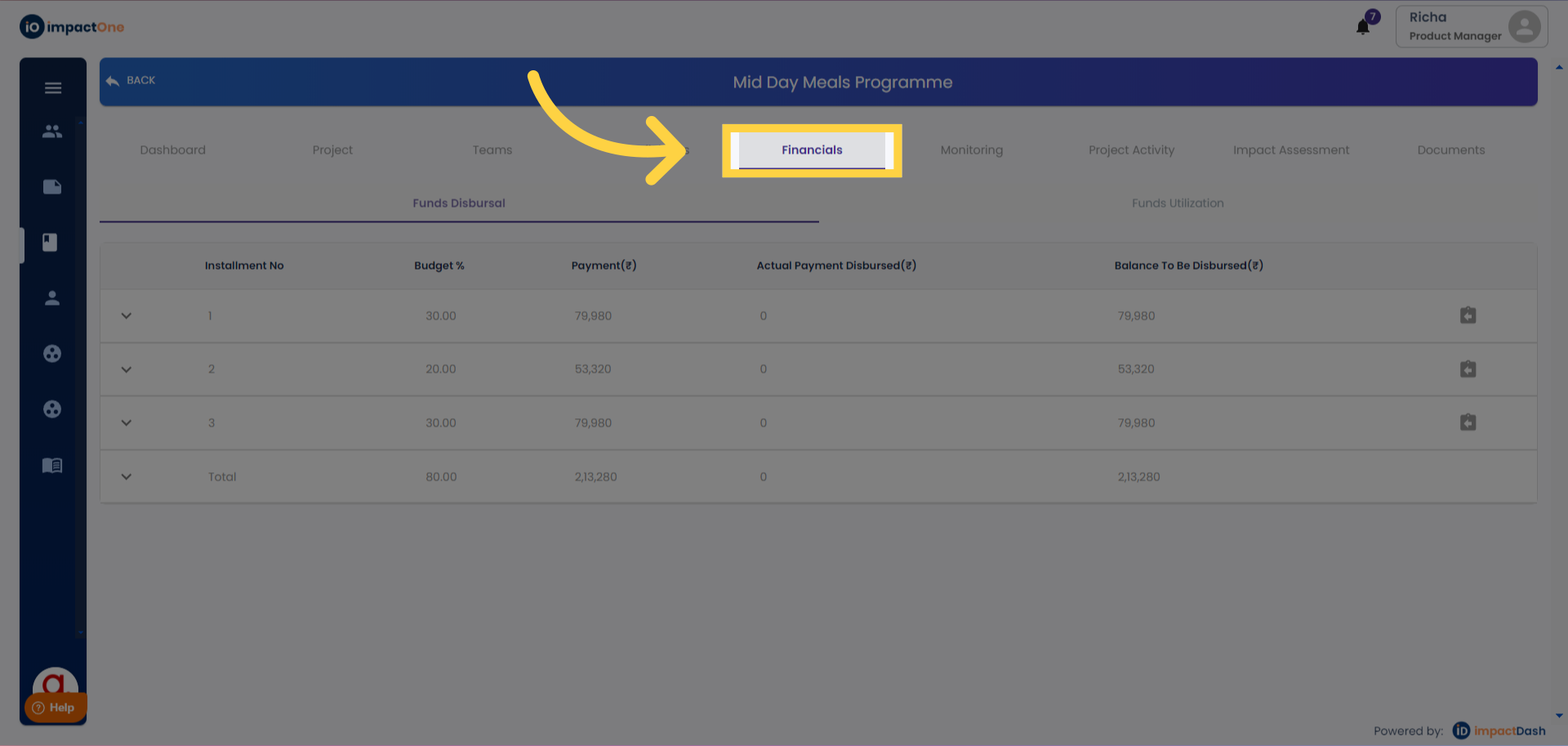
1.Financials: Navigate to Financials tab after project is live.
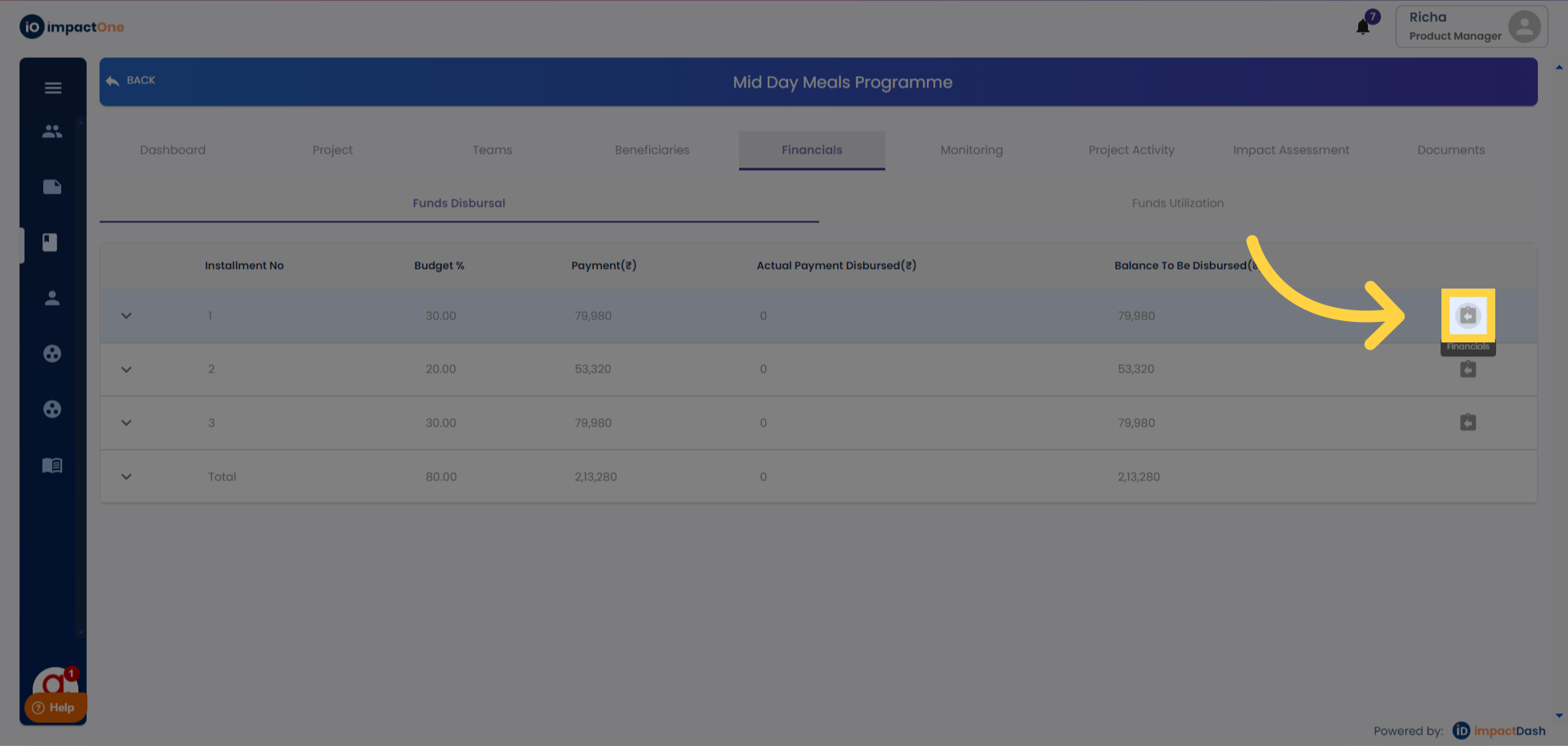
2.Financial installments: Click on Financials button on the right side of individual installments to start the disbursal of each installment.
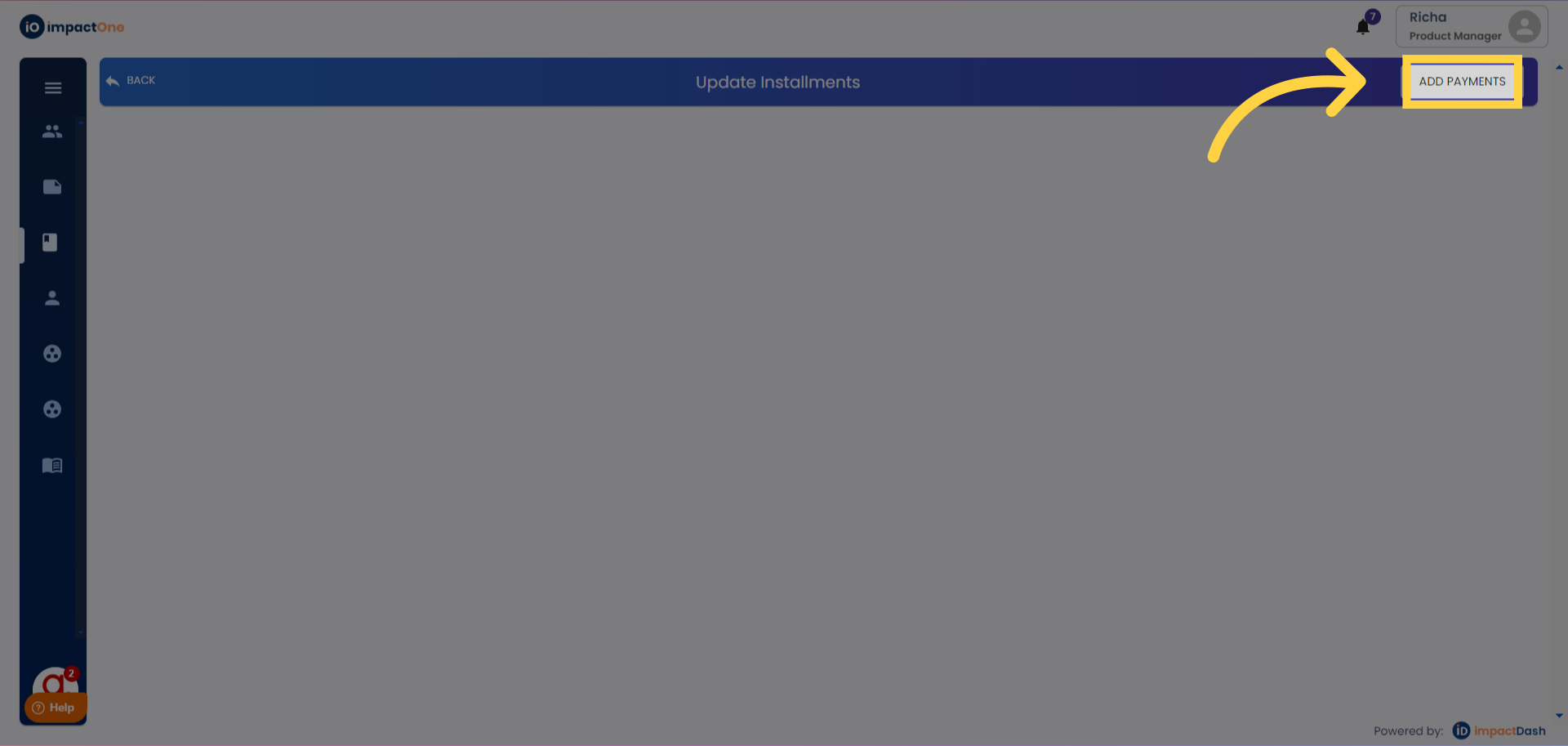
3.Add Payment:Click on the ‘Add Payment’ Button on the top right corner of the screen.
4.Create Payment: Create a payment of 100% or a partial payment to disburse.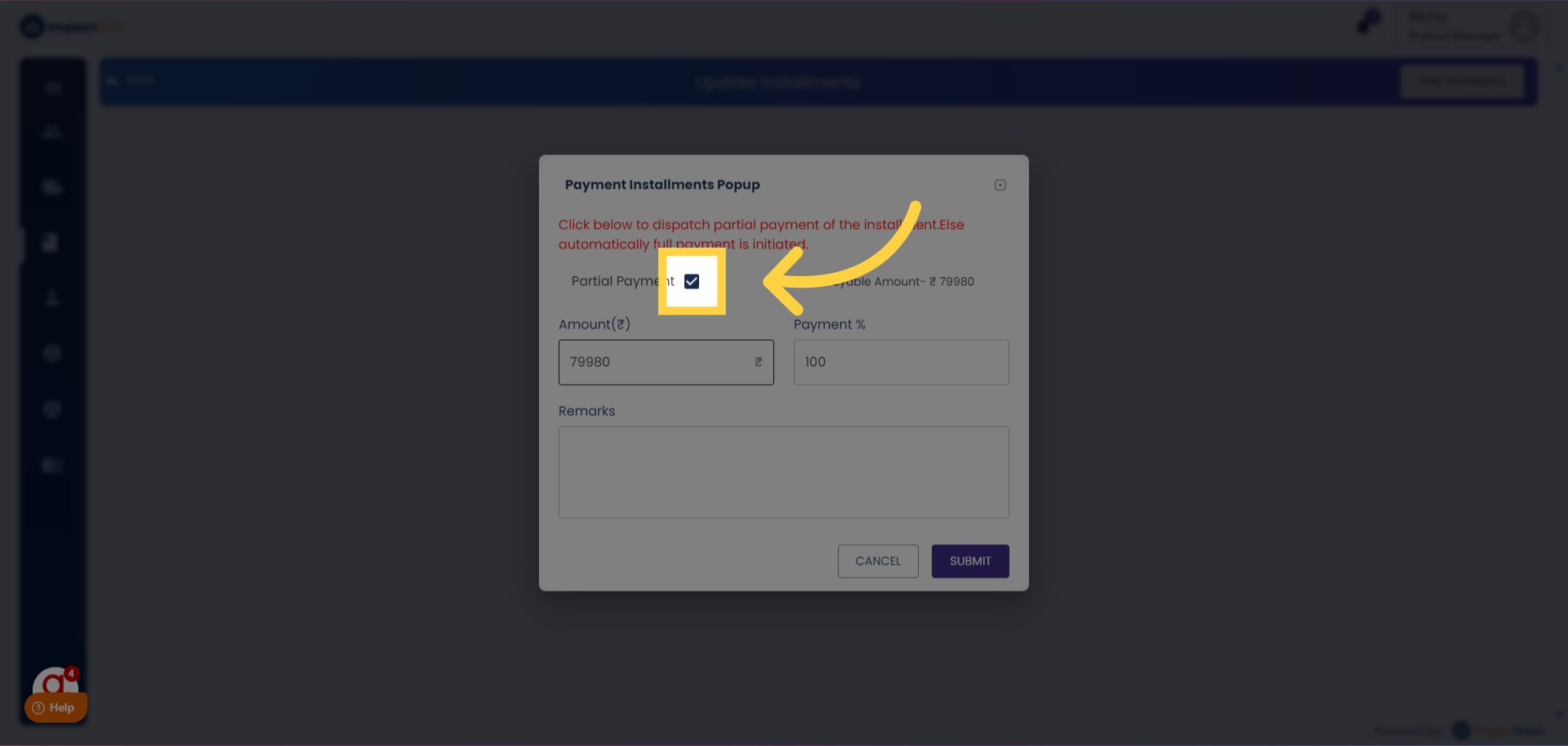
5.Submit payment details: Click on "Submit" to confirm the payment added.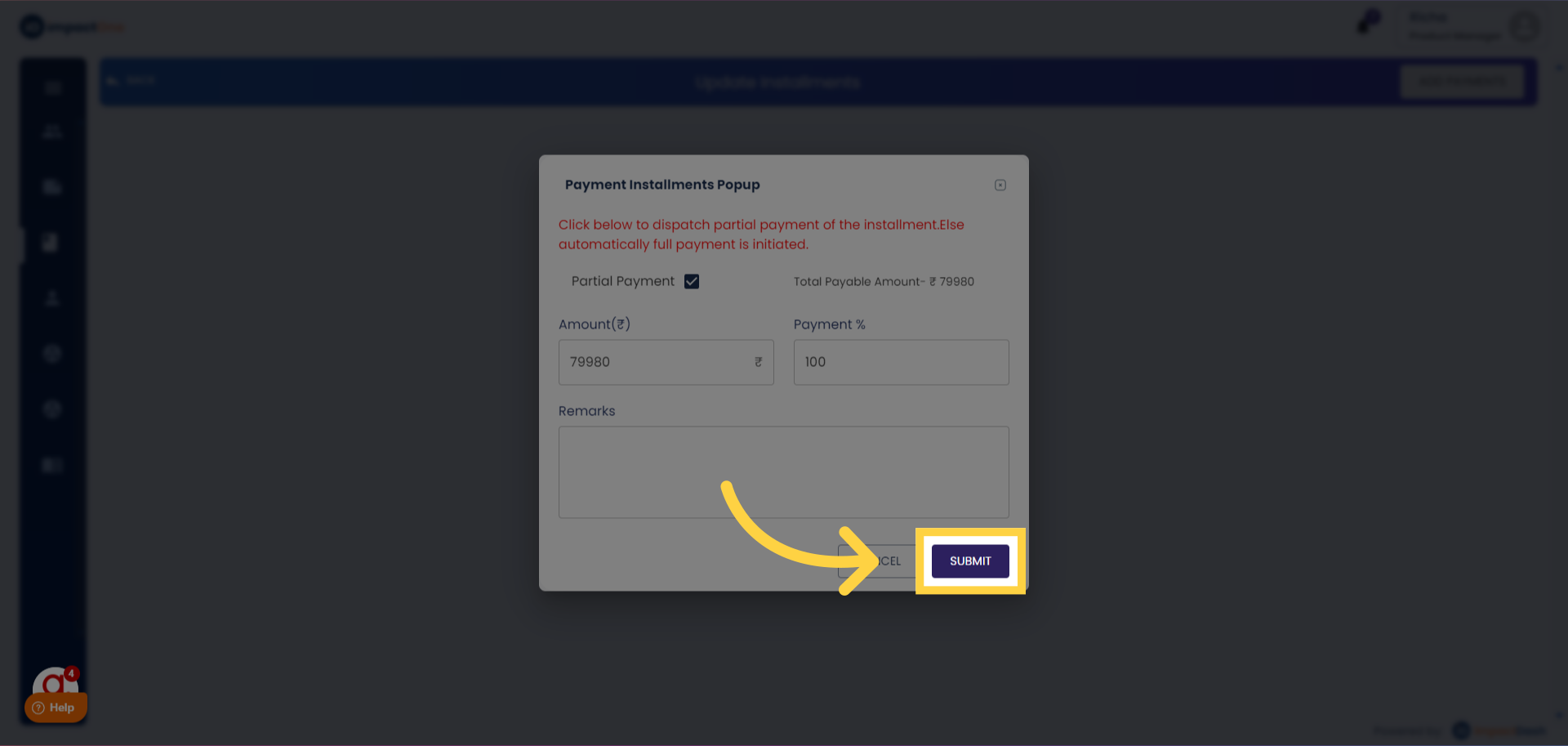
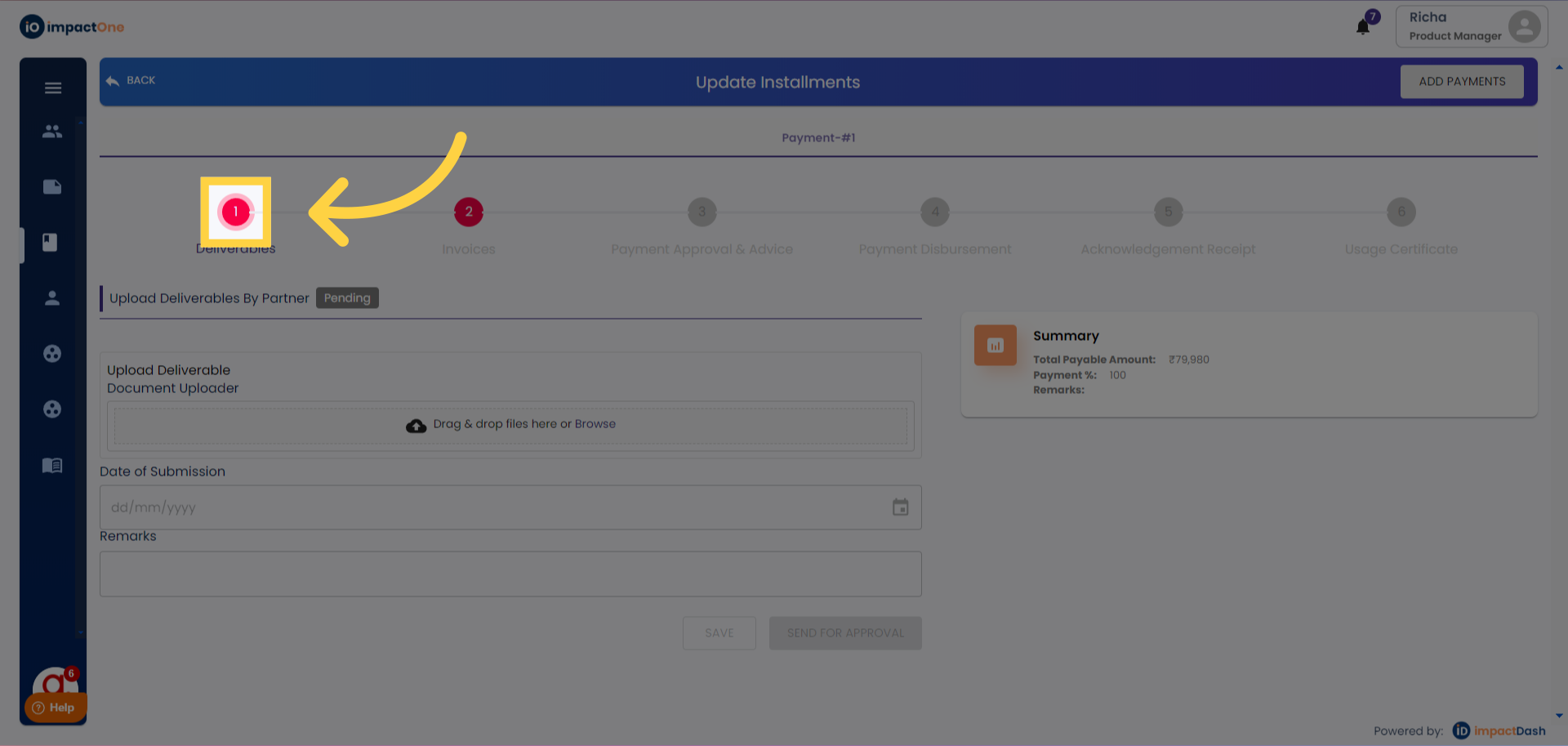
Note: After the payment is added for the particular installment,6 steps to disburse payment will open. These steps need to be completed by the maker and checker of the Financial team of a project.
User: Maker
Step 1: Deliverables: Maker needs to add the details on the first section, start by adding the document for deliverables.
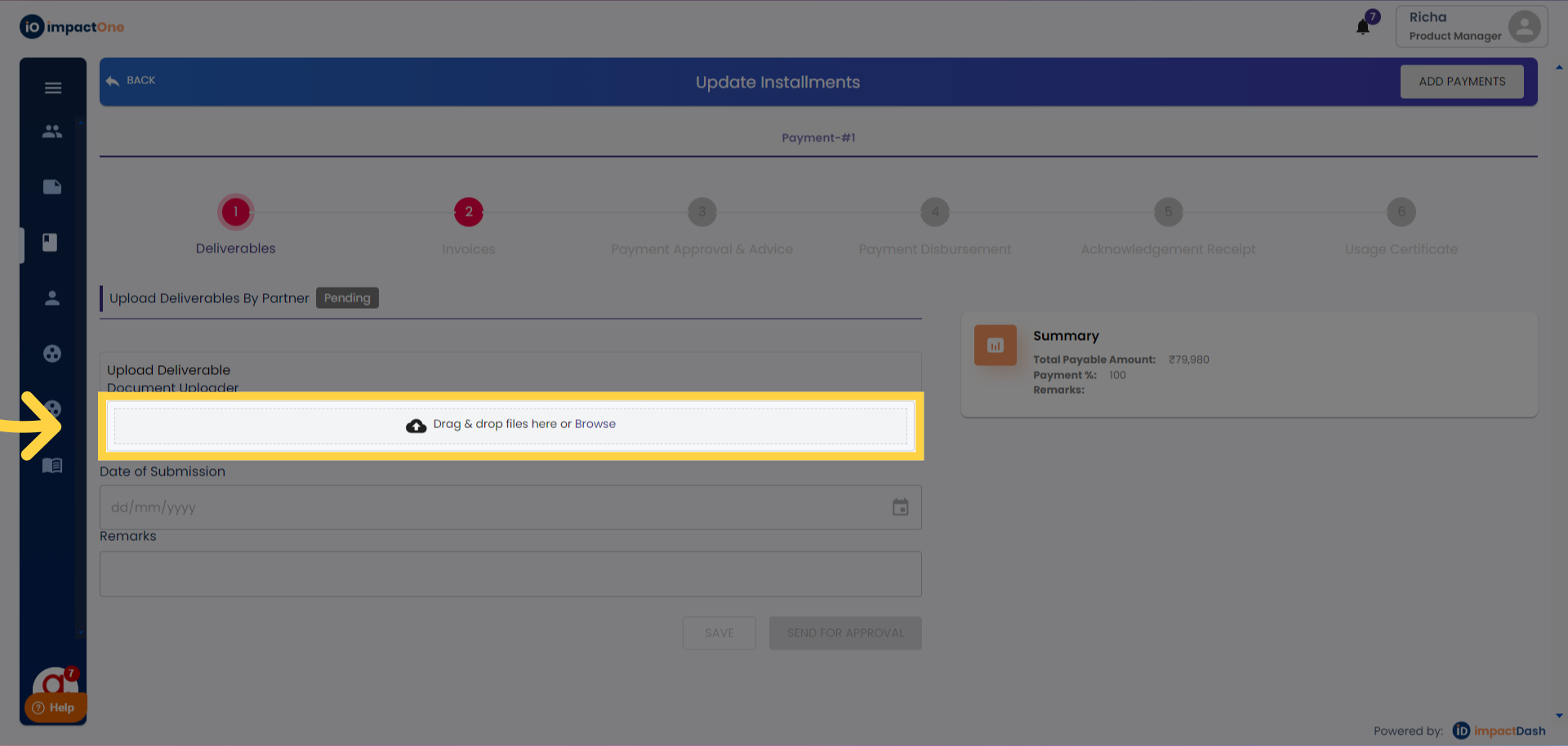
Add Date: Enter the date of submission.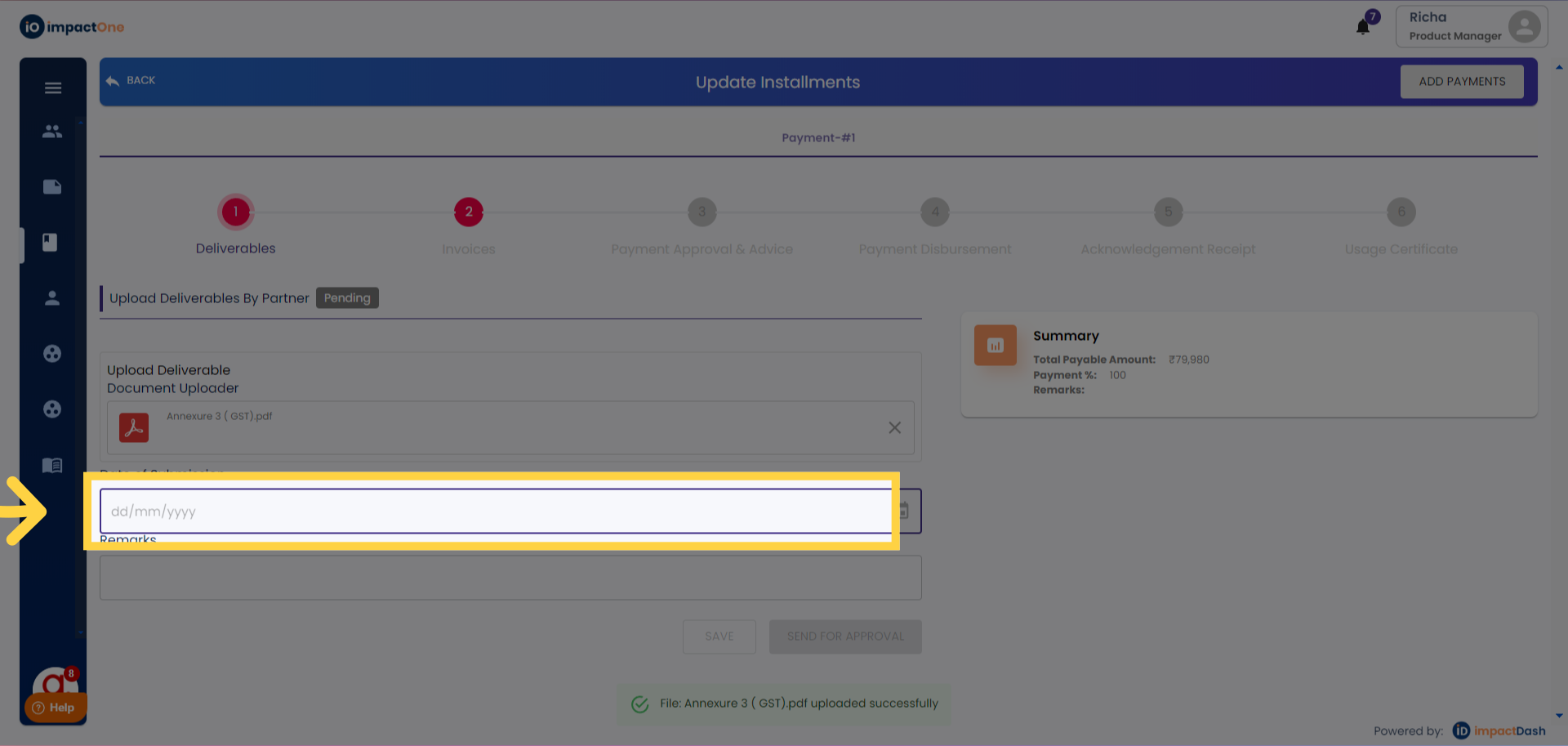
Add Remarks: Type the remarks of the deliverable.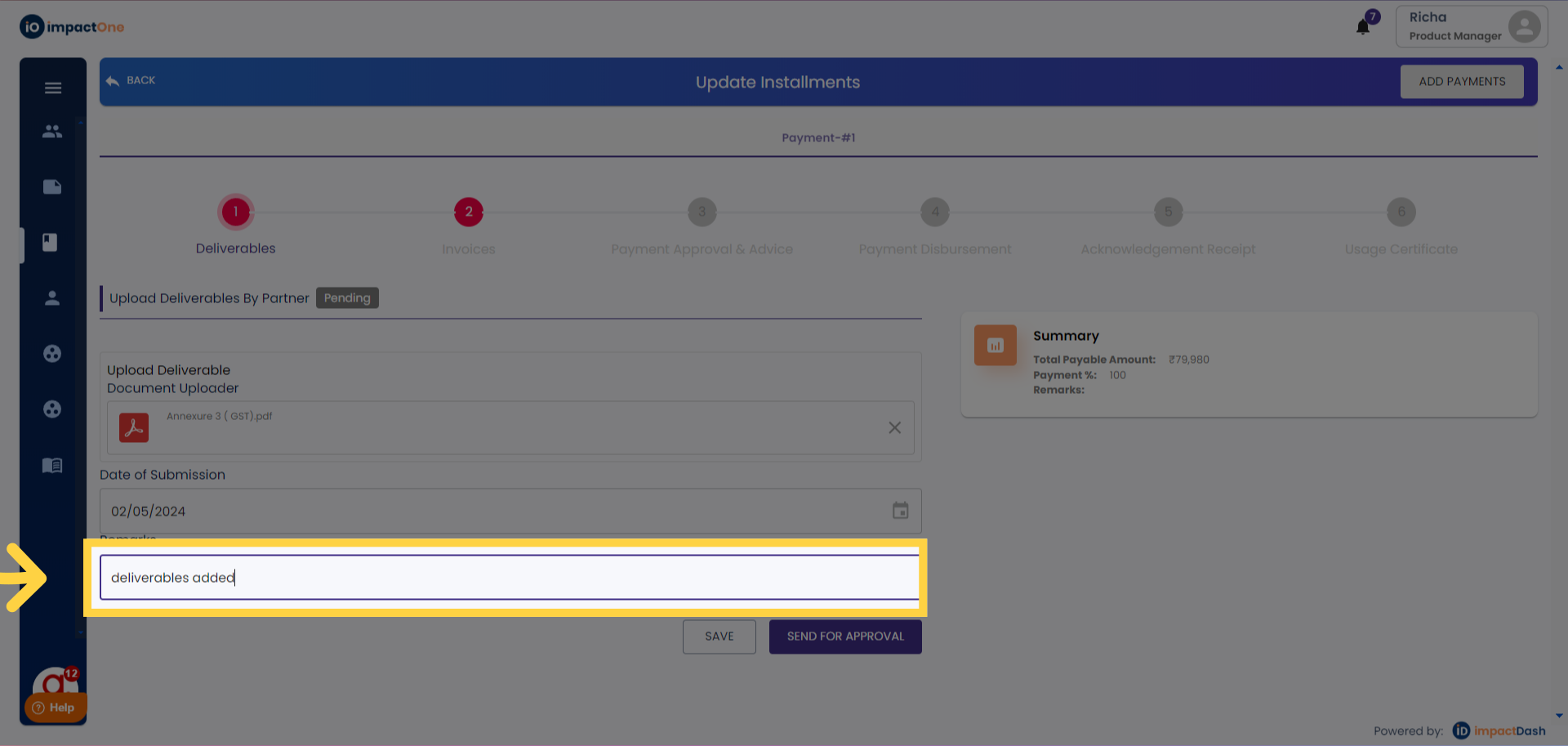
Send Approval: Send the deliverables for approval by clicking on the "send for approval' button.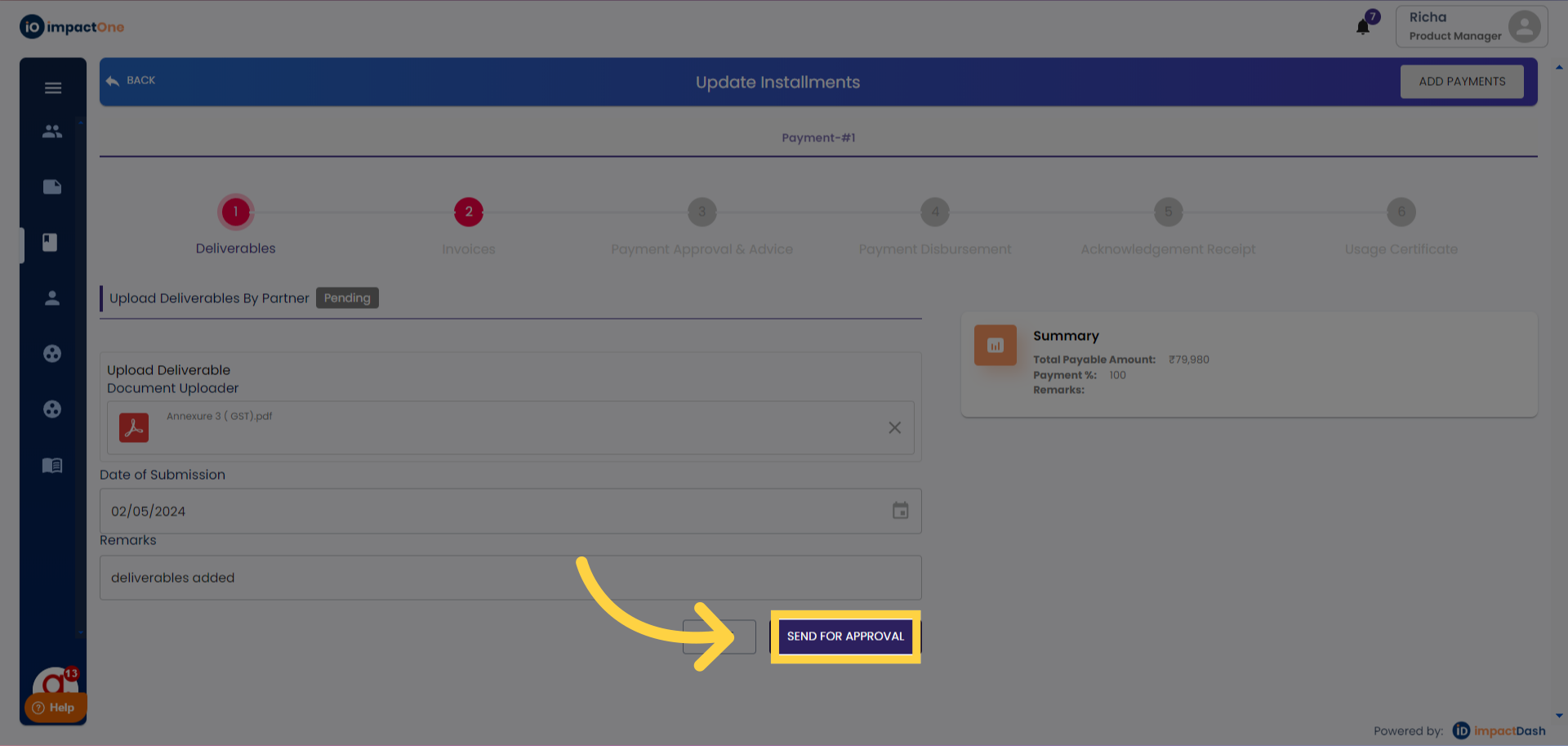
User: Maker
Step 2: Invoices: Navigate to invoices under the financials. This step has three sub-steps.
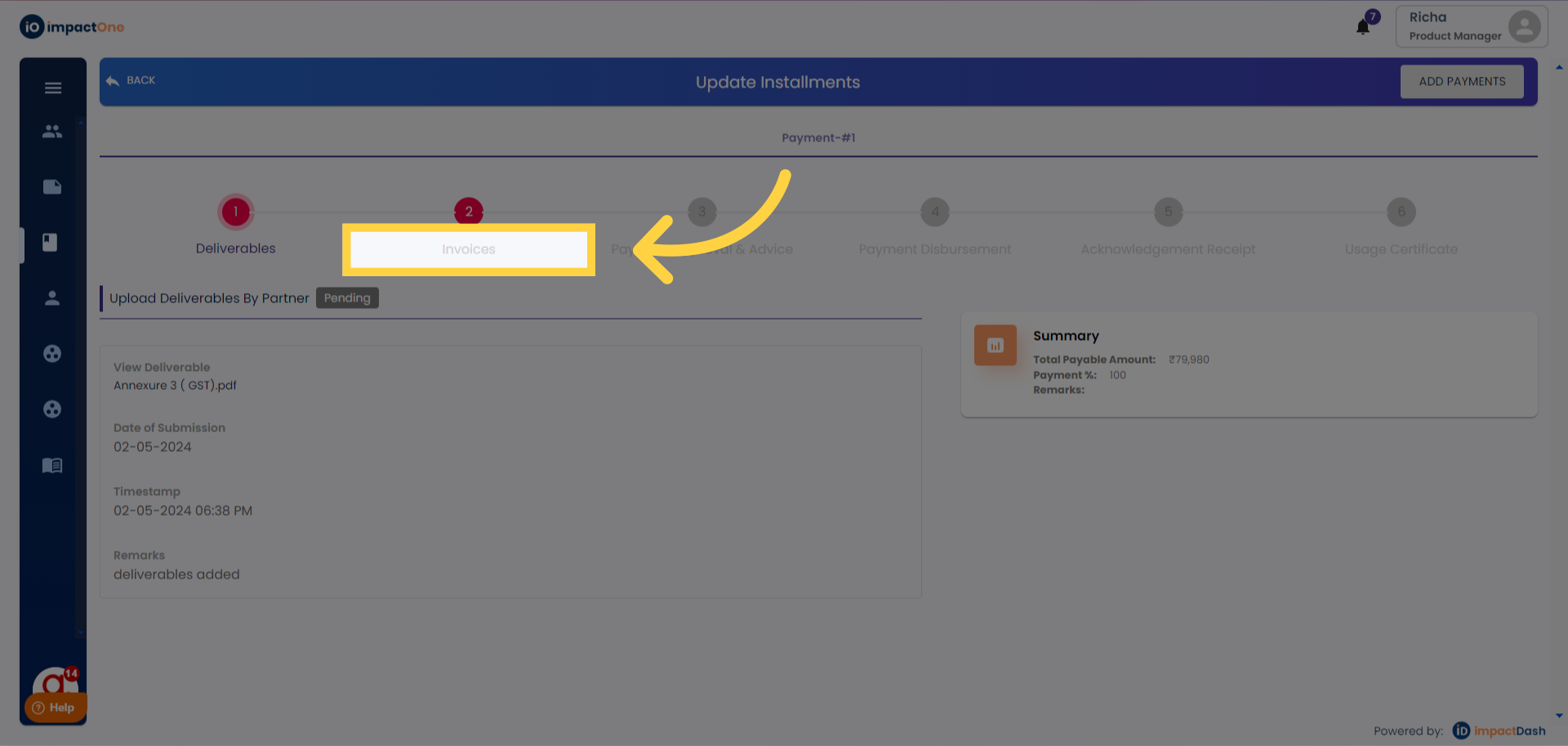
a) Upload Grant/Invoice Scan Copy By Partner (Mandatory)
Invoice Document: Upload the invoice document.
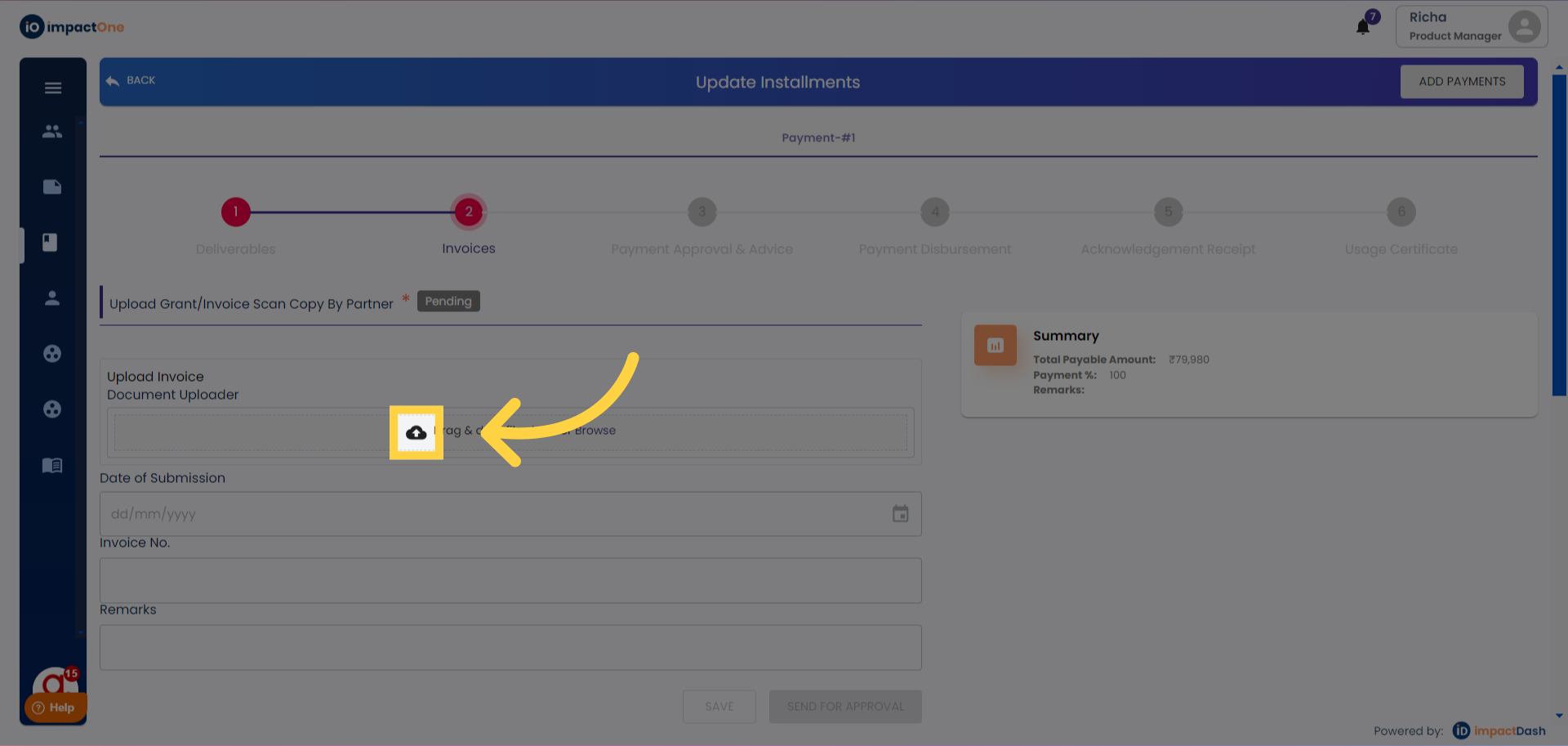
Date of Submission: Add the date of submission for the uploaded invoice.
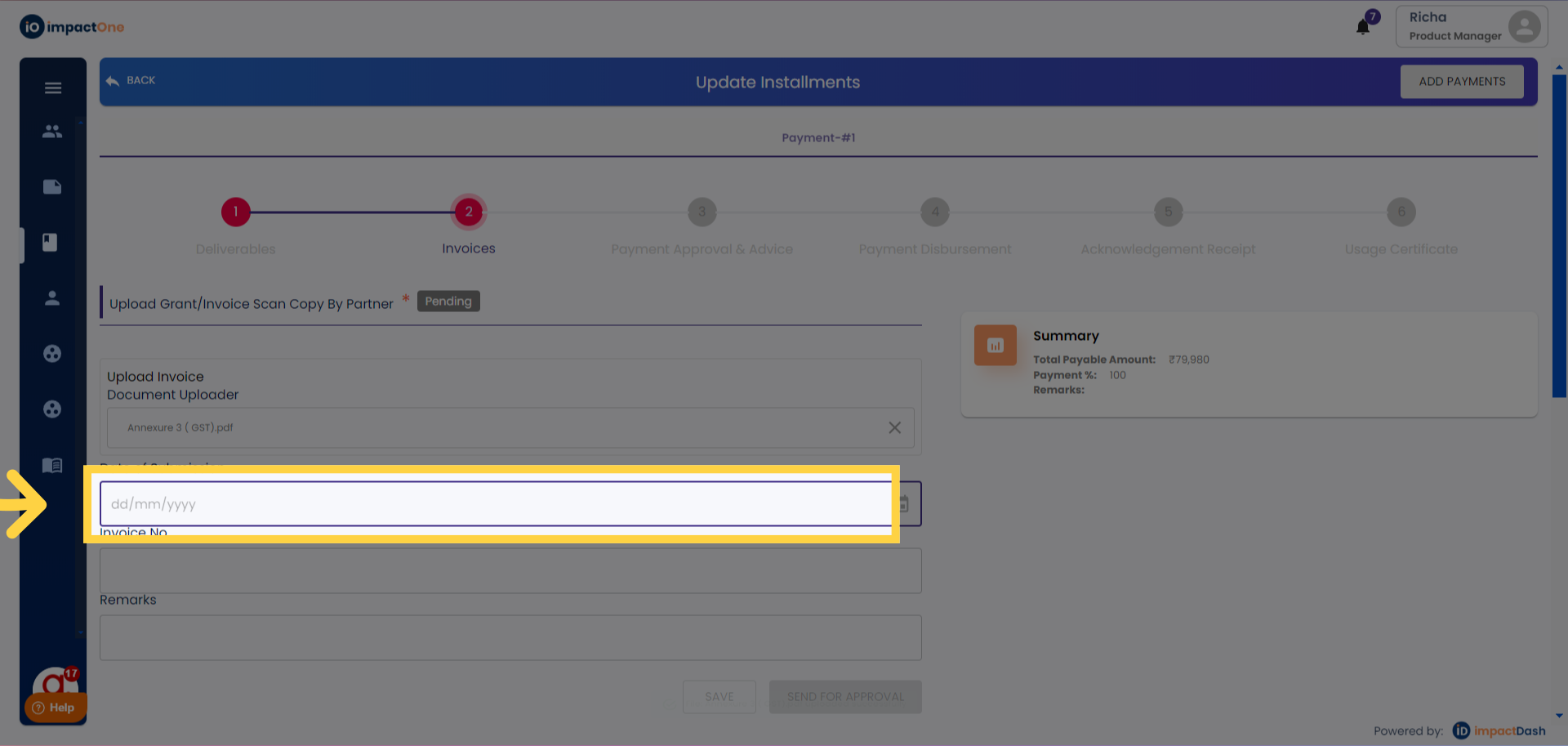
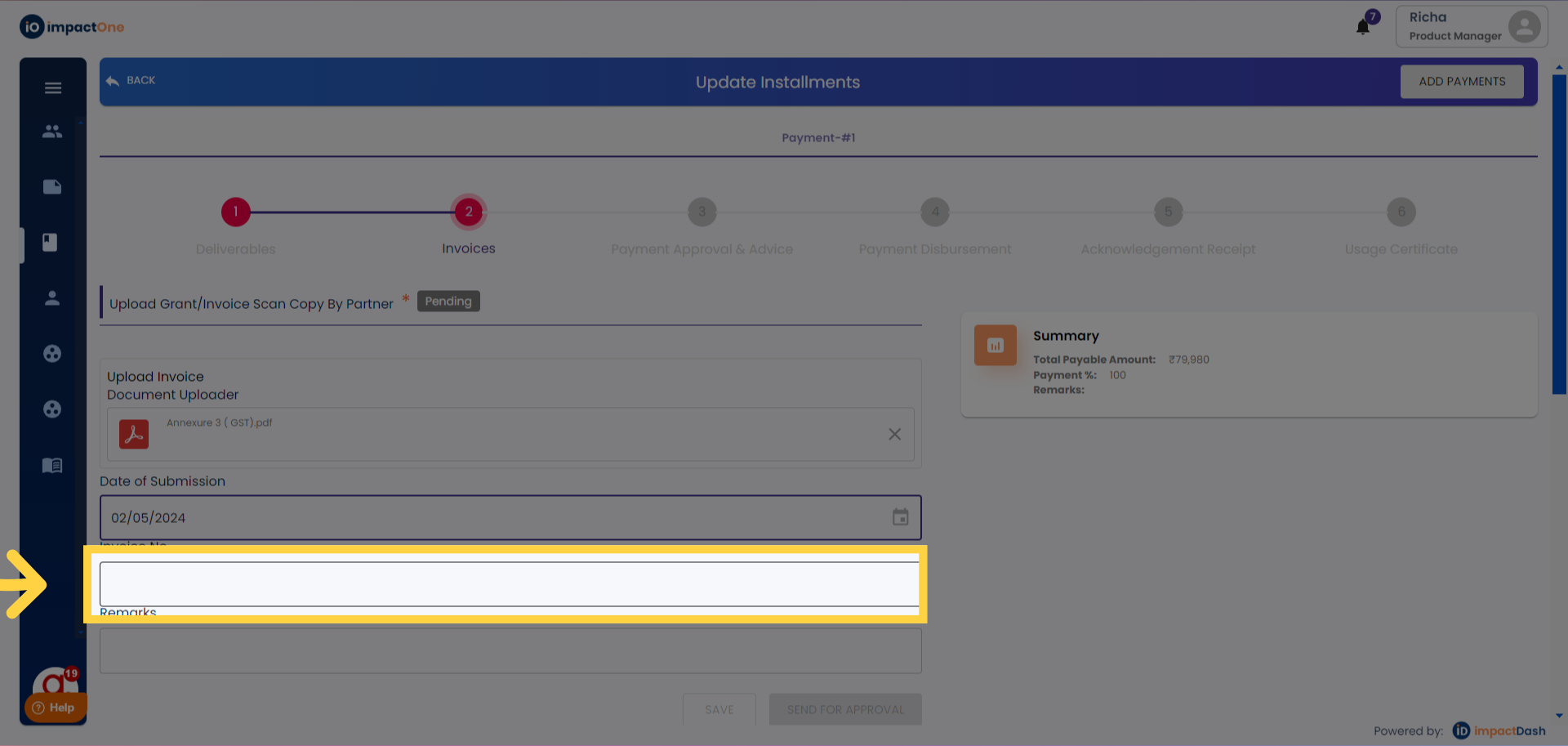
Remarks: Put the remarks for the invoice added.
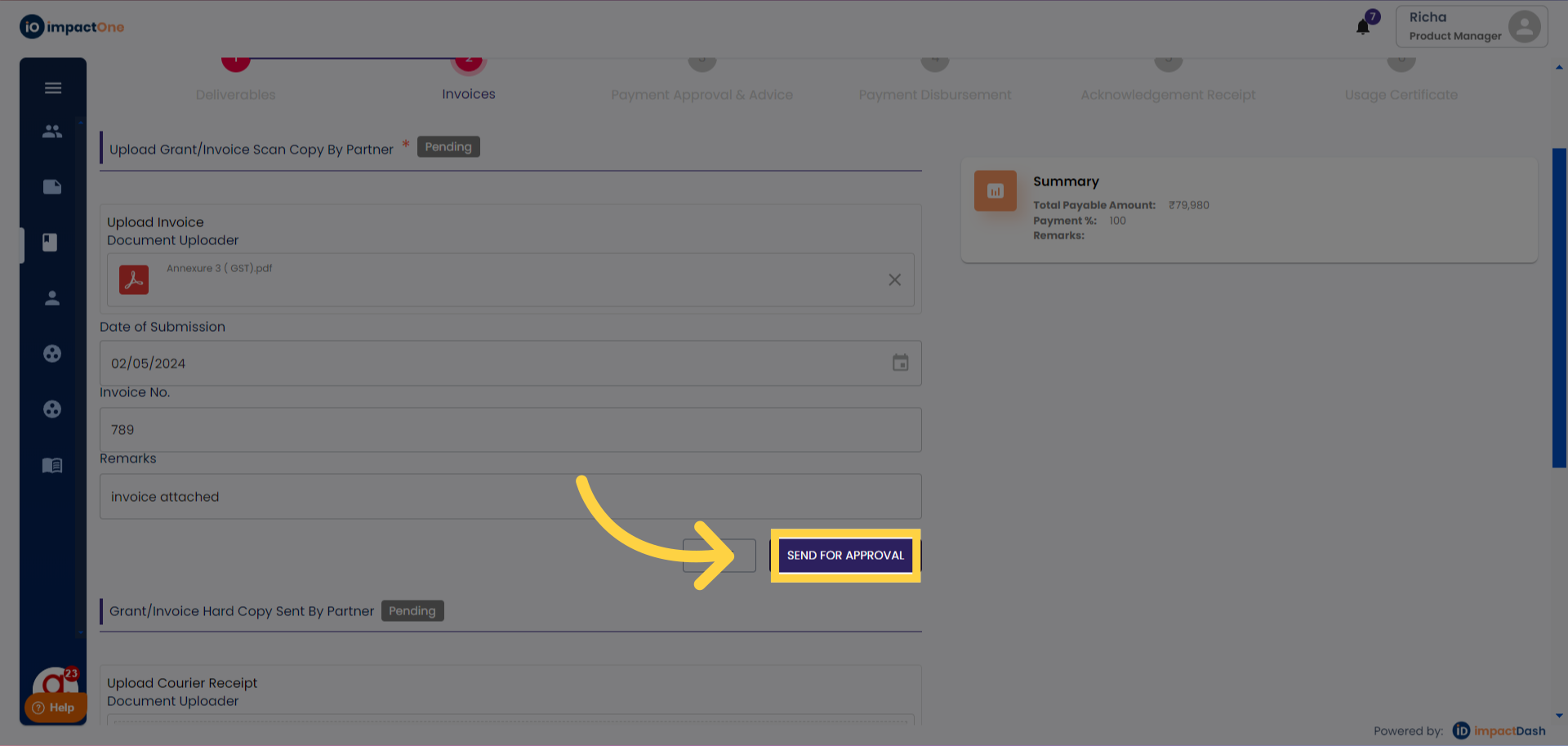
Send for Approval: Click on the ‘send for approval’
b) Grant/Invoice Hard Copy Sent By Partner
Upload: Drag & drop the courier receipt document to upload.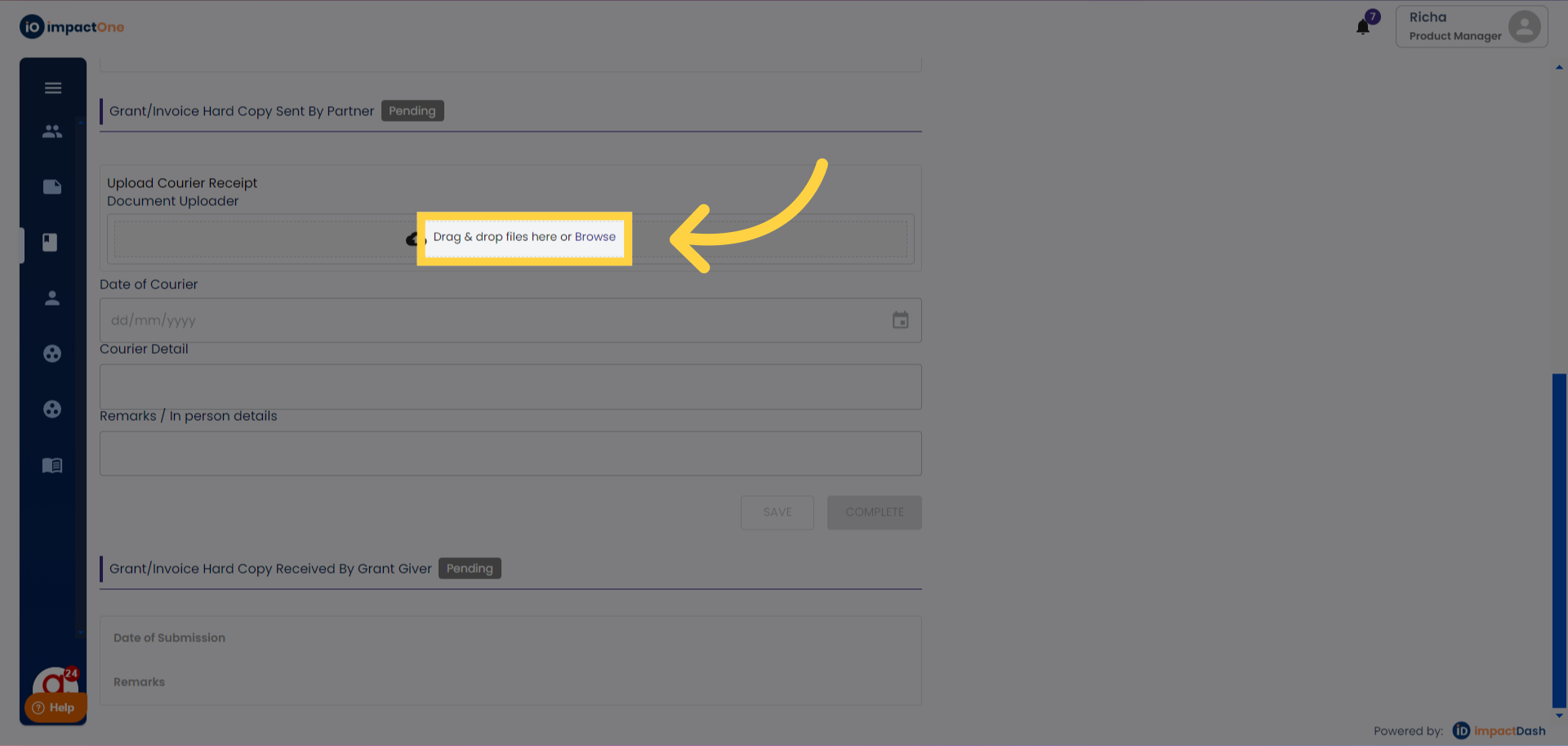
Add Date: Add the date of courier.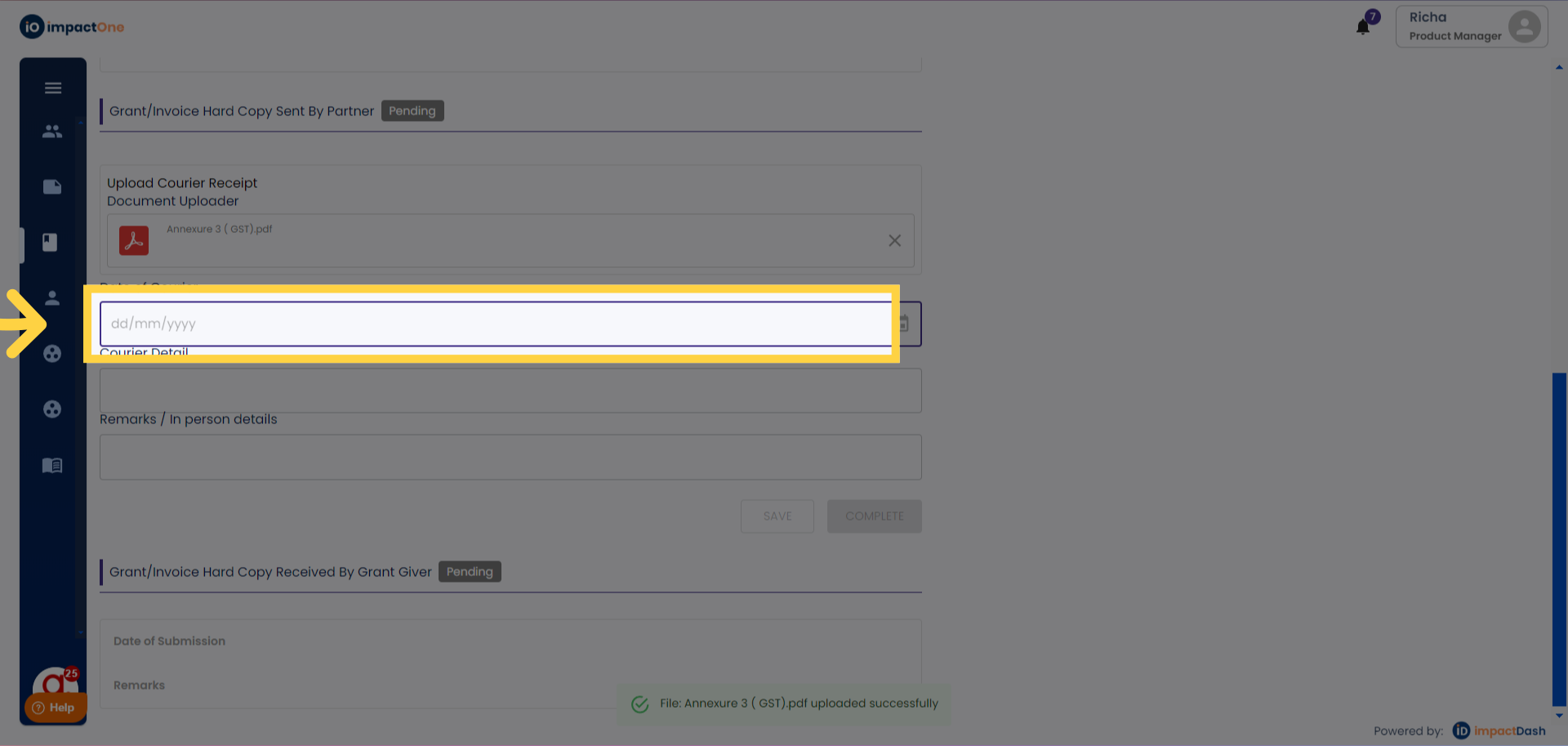
Add Remarks: Add remarks regarding the line item.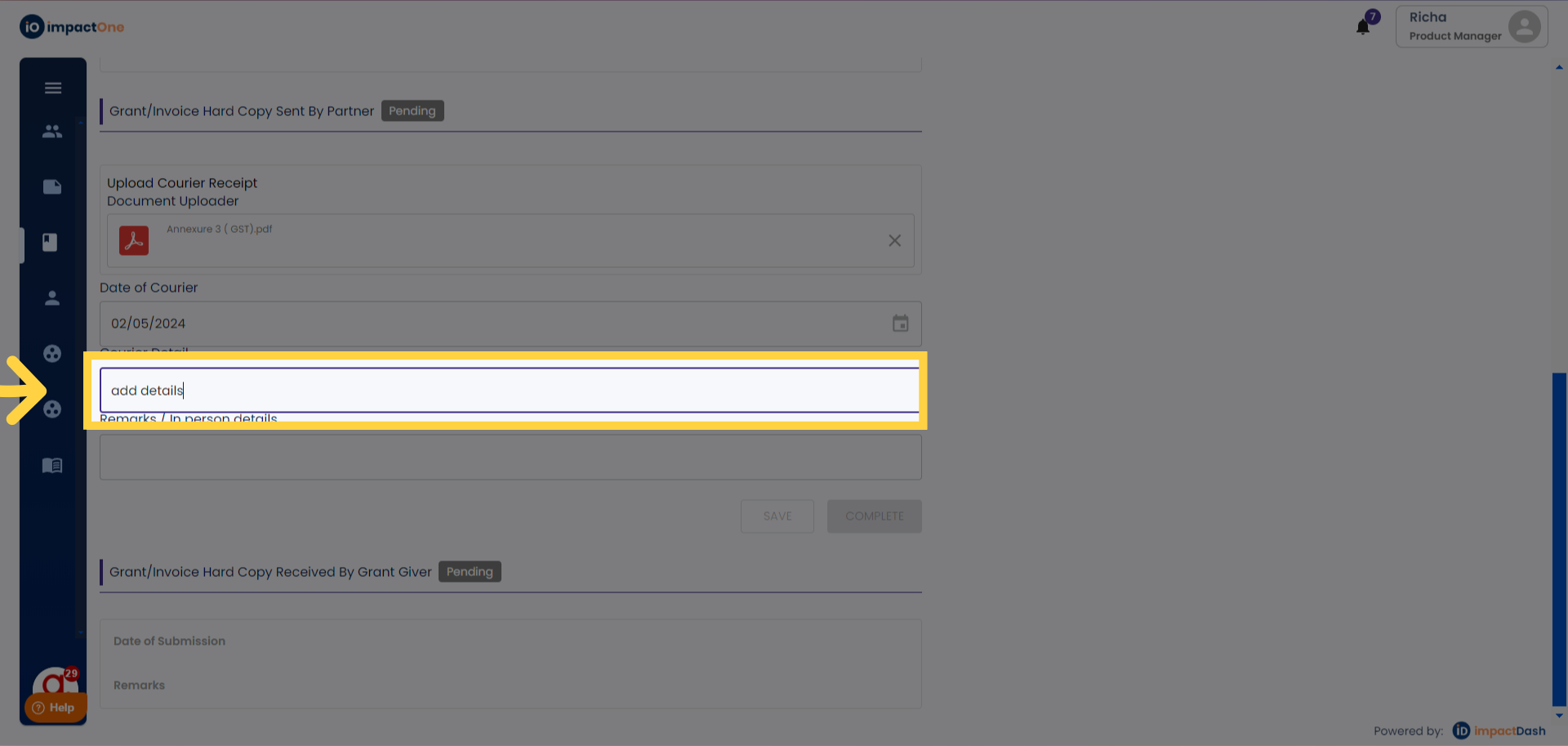
Confirm Action: Click on "Complete" button, to confirm the action.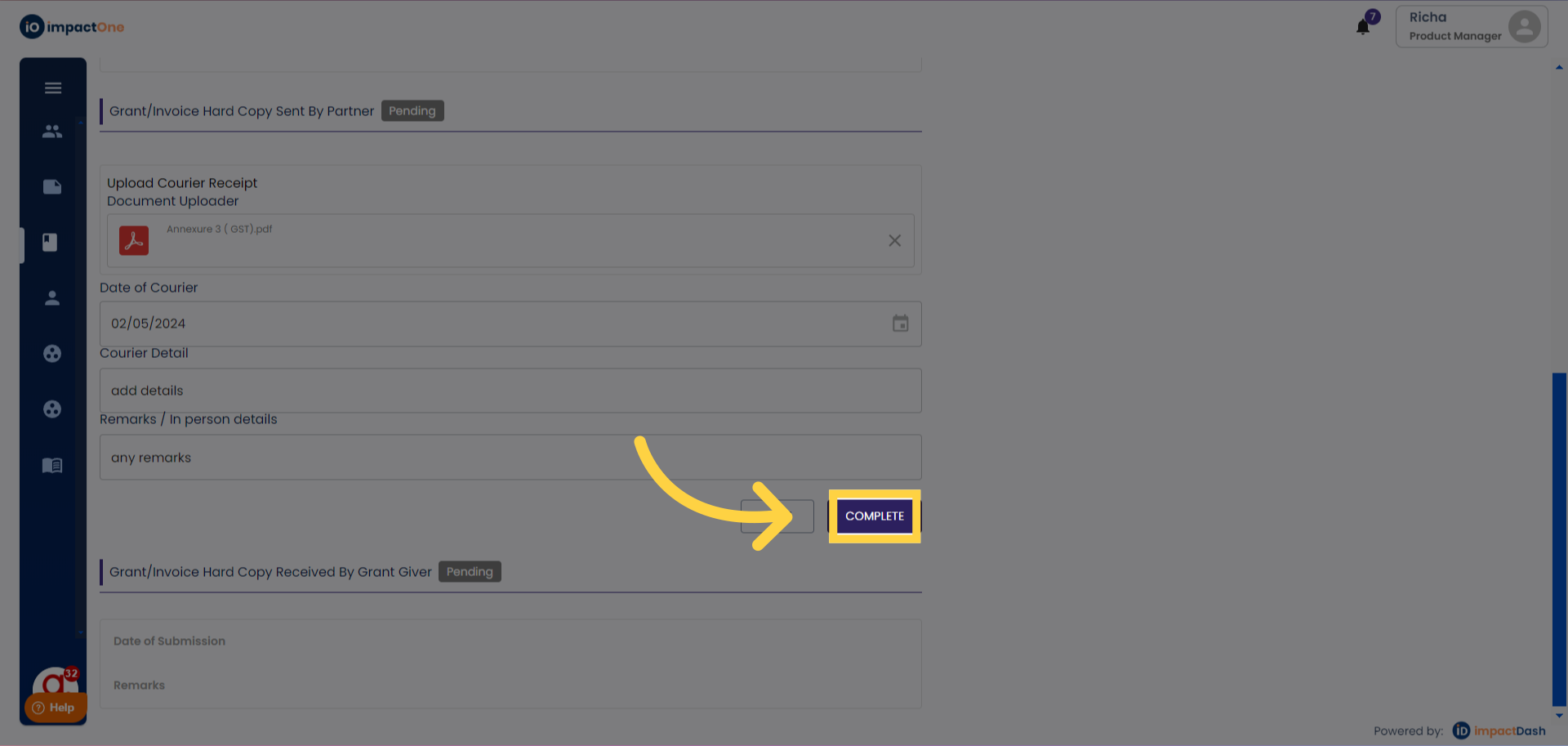
Note :After the invoice has been submitted by the partner for approval, the checker will approve the action.
Step 3and 4 are performed by the funder, once they approve the steps the payment is considered to be disbursed after Step 4 is completed.
User : Maker
Step 5: Acknowledgement Receipt
a) Payment Receipt Details by Partner
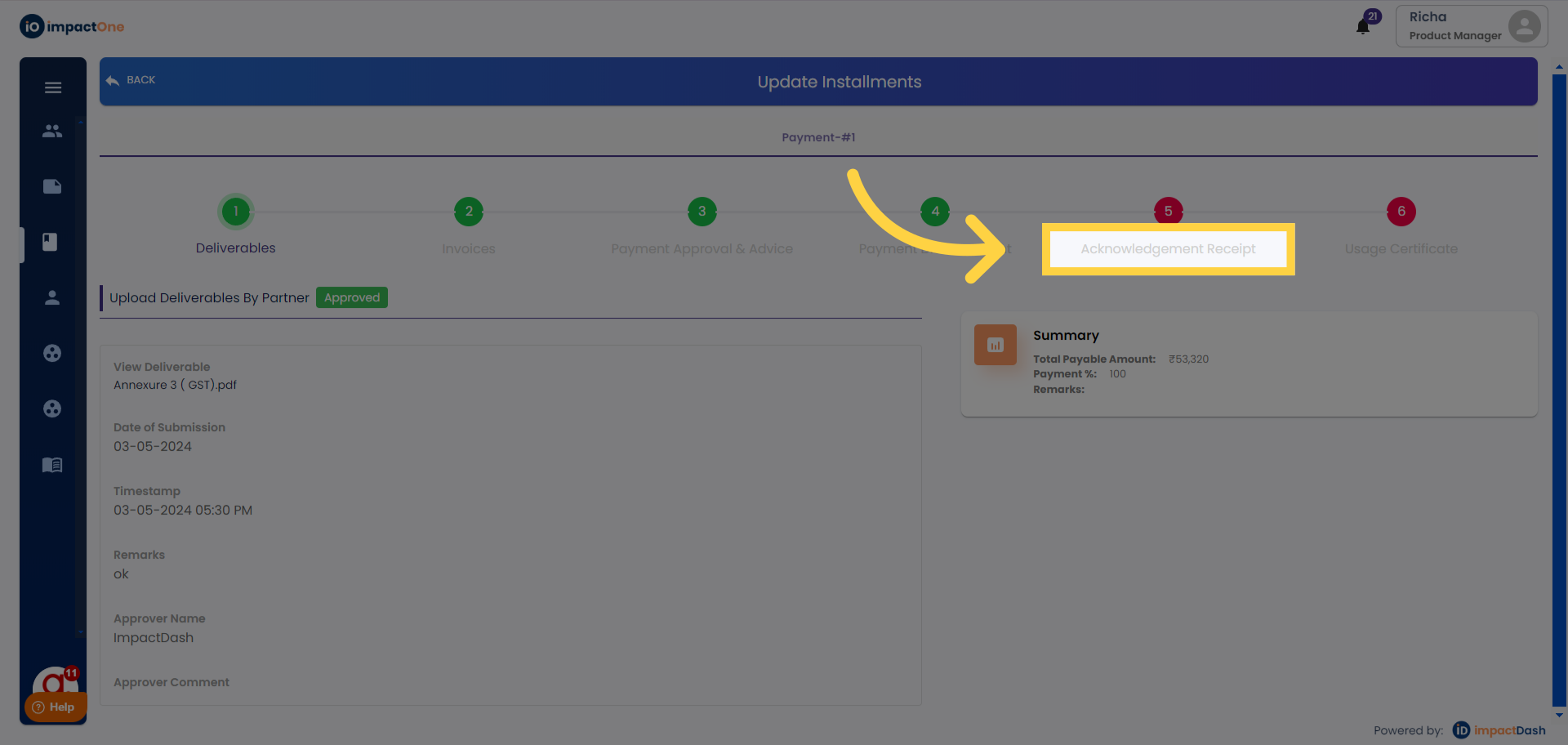
Add Document: Drag & drop the documents to upload payment receipt and bank advice receipt.
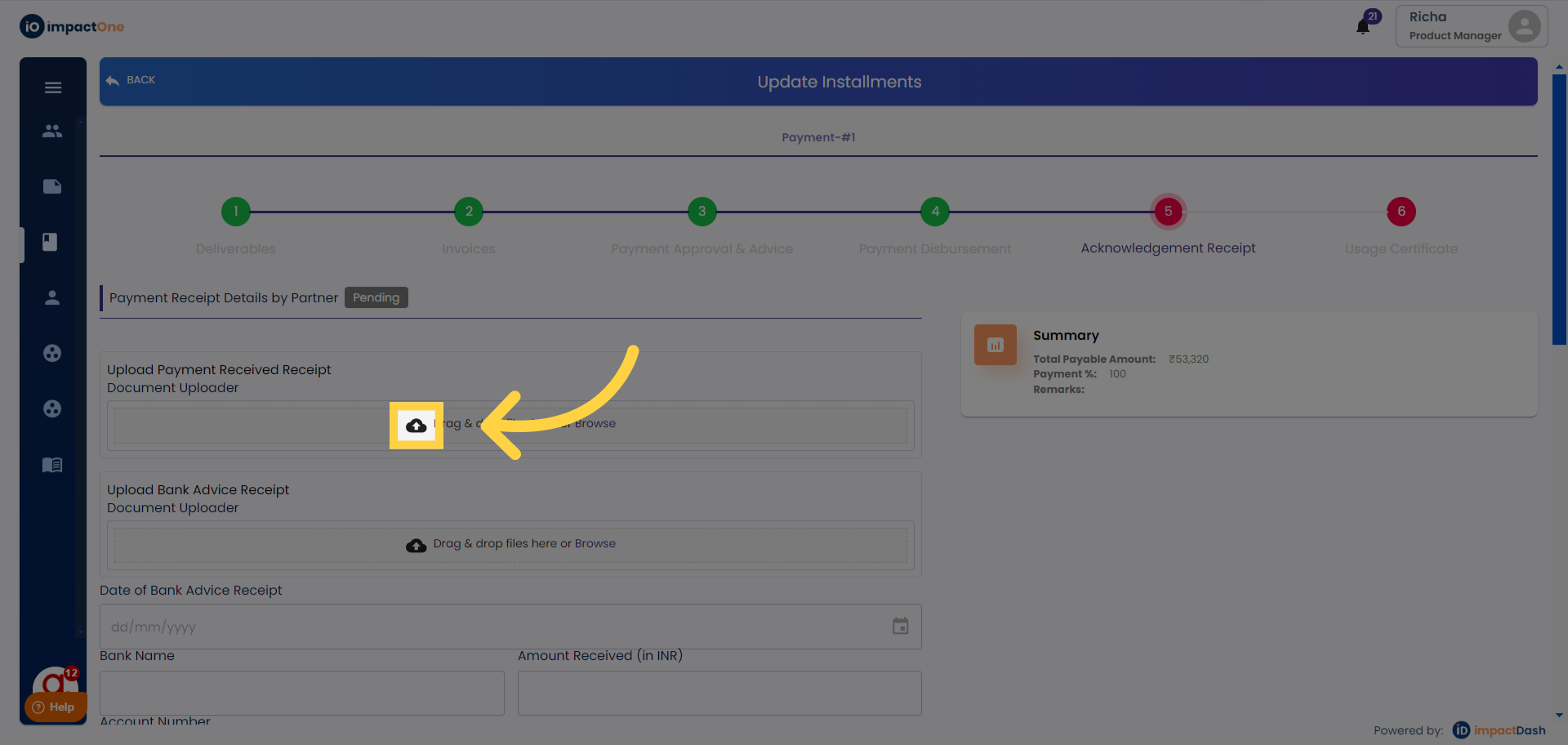
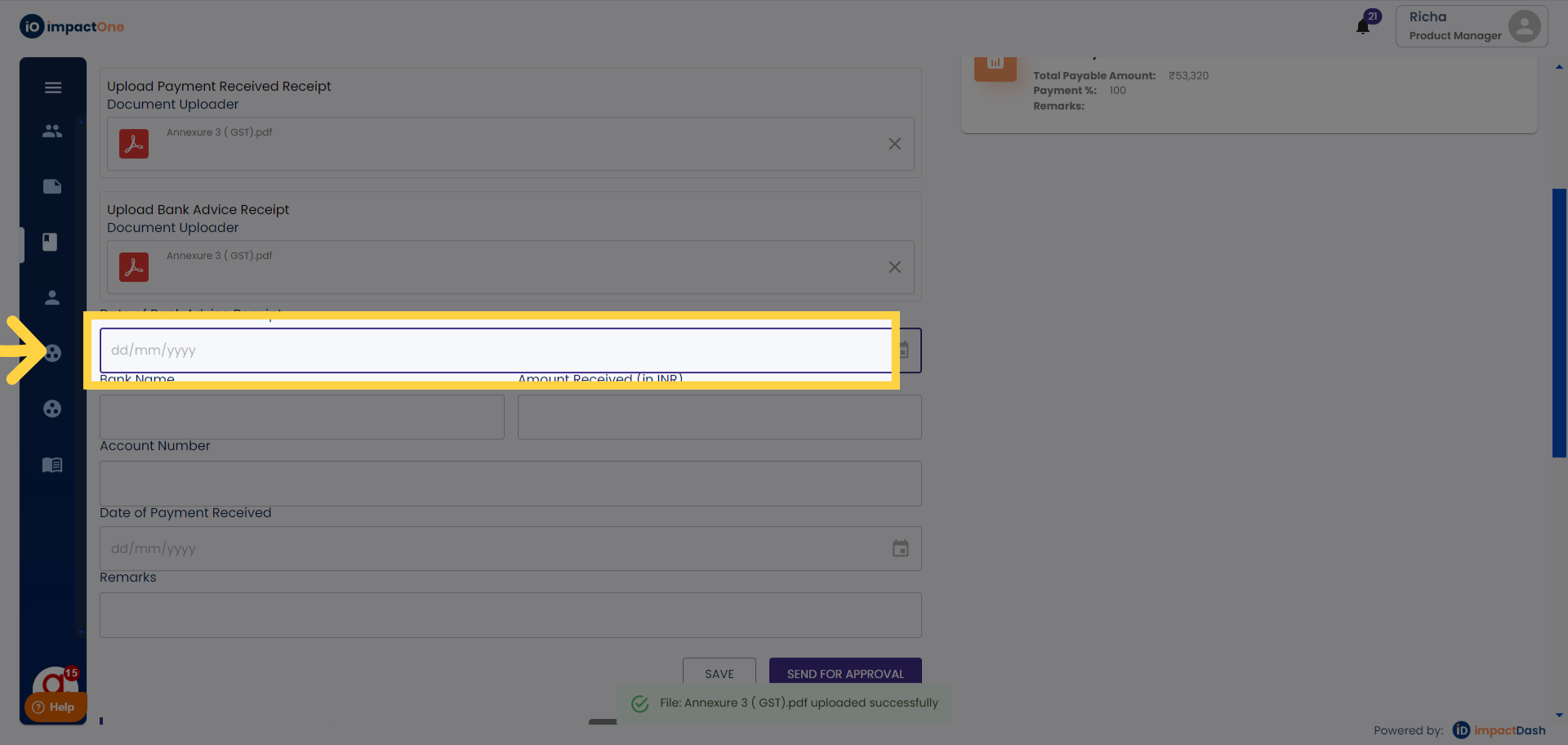
Add Date: Add date of bank advised receipt
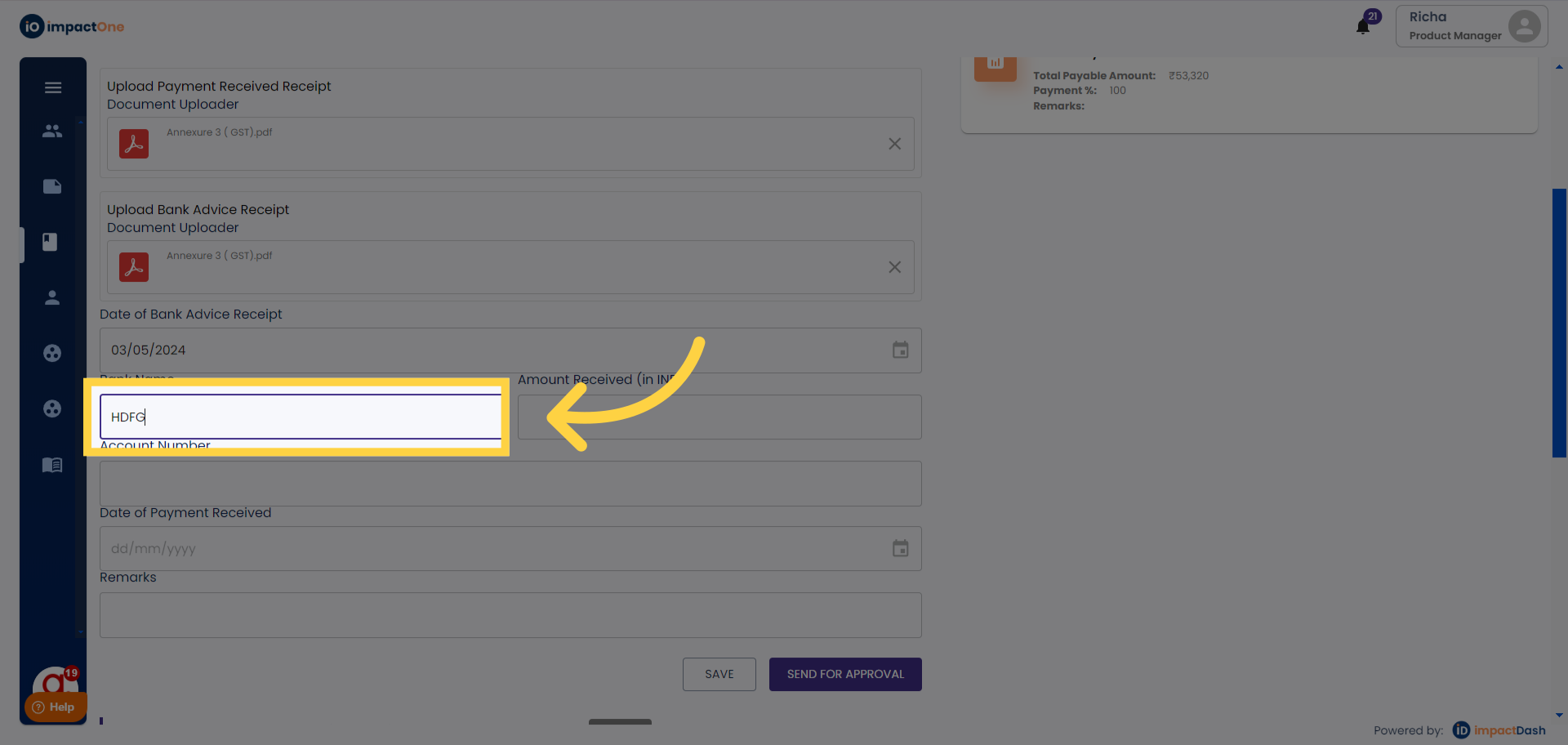
Enter Bank details: Add bank name, and account number along with amount received.
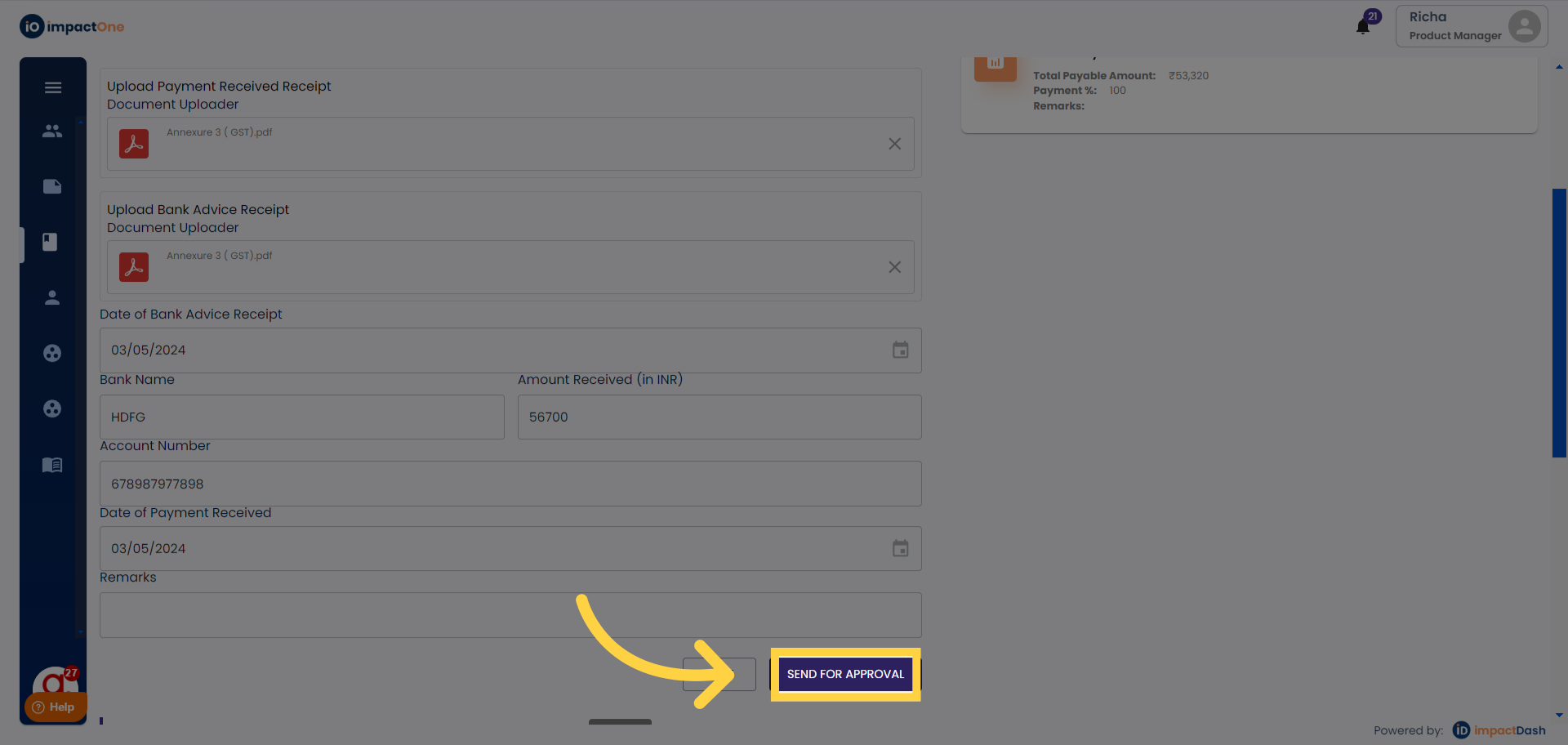
Send Approval: Click on the Send for approval button to confirm the action.
b) Payment Acknowledgement Receipt & Advice Hard Copy Sent By Partner
Add Document: Drag & Drop the document for uploading the courier receipt
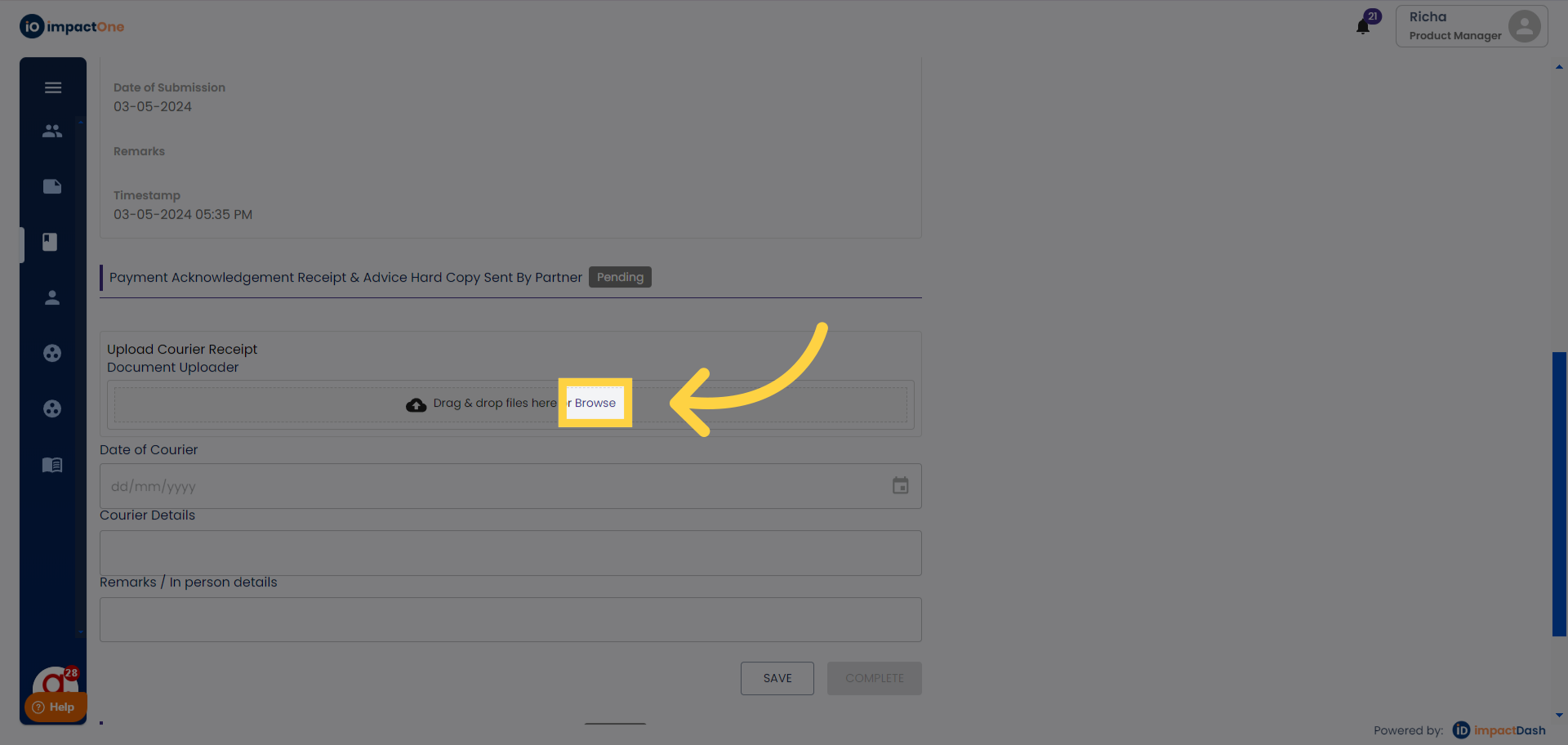
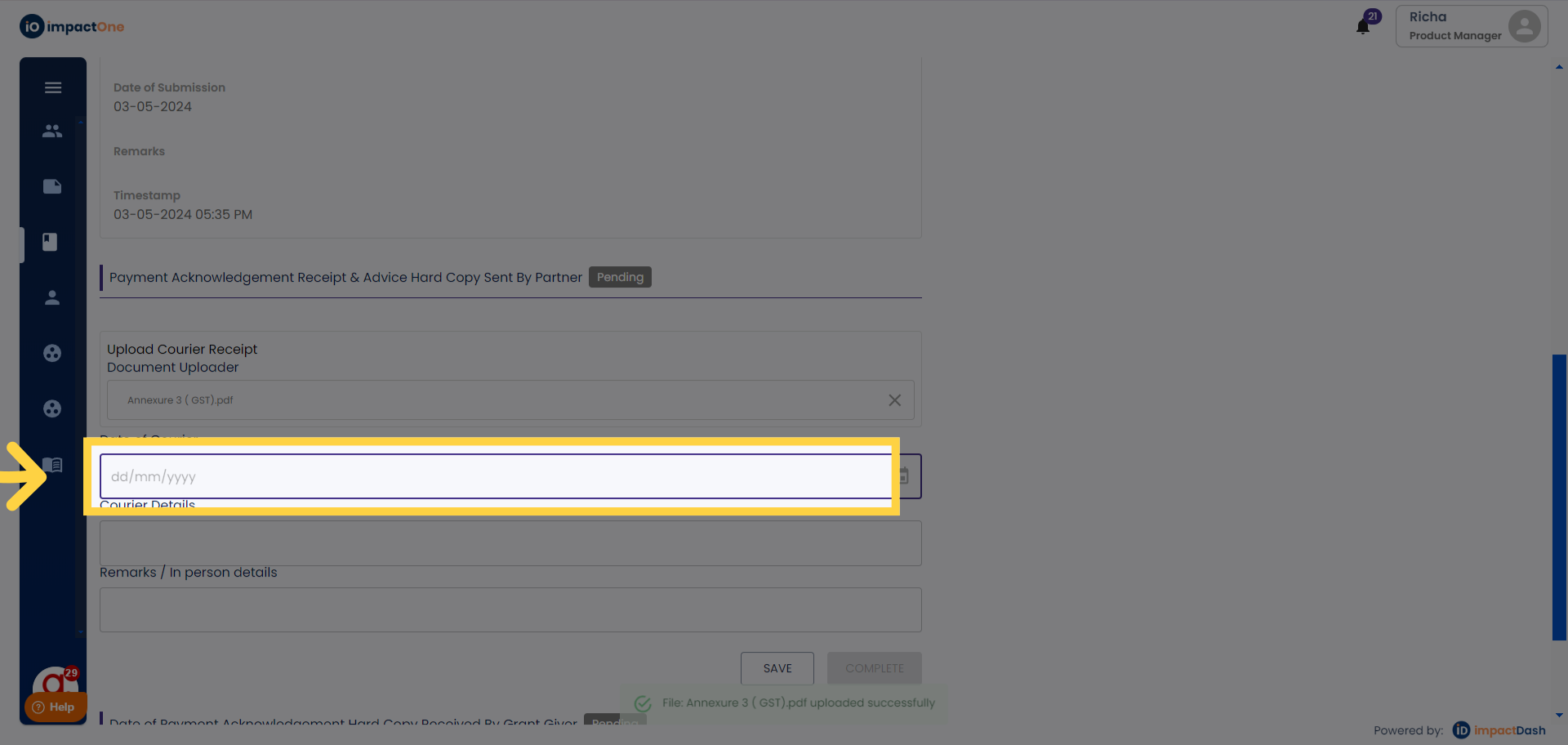
Add Date: Add date of the courier receipt submission
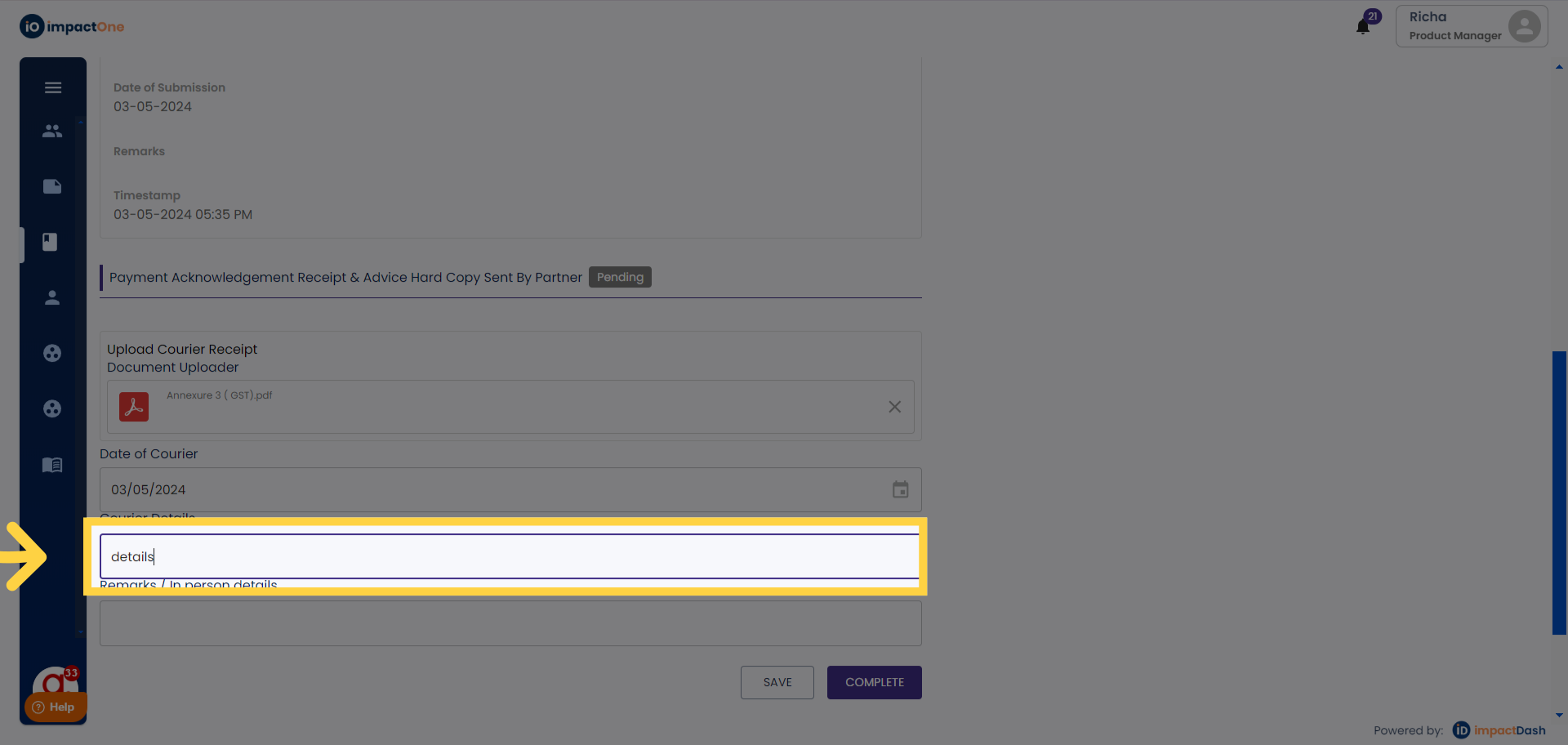
Add Details: Add details of the courier.
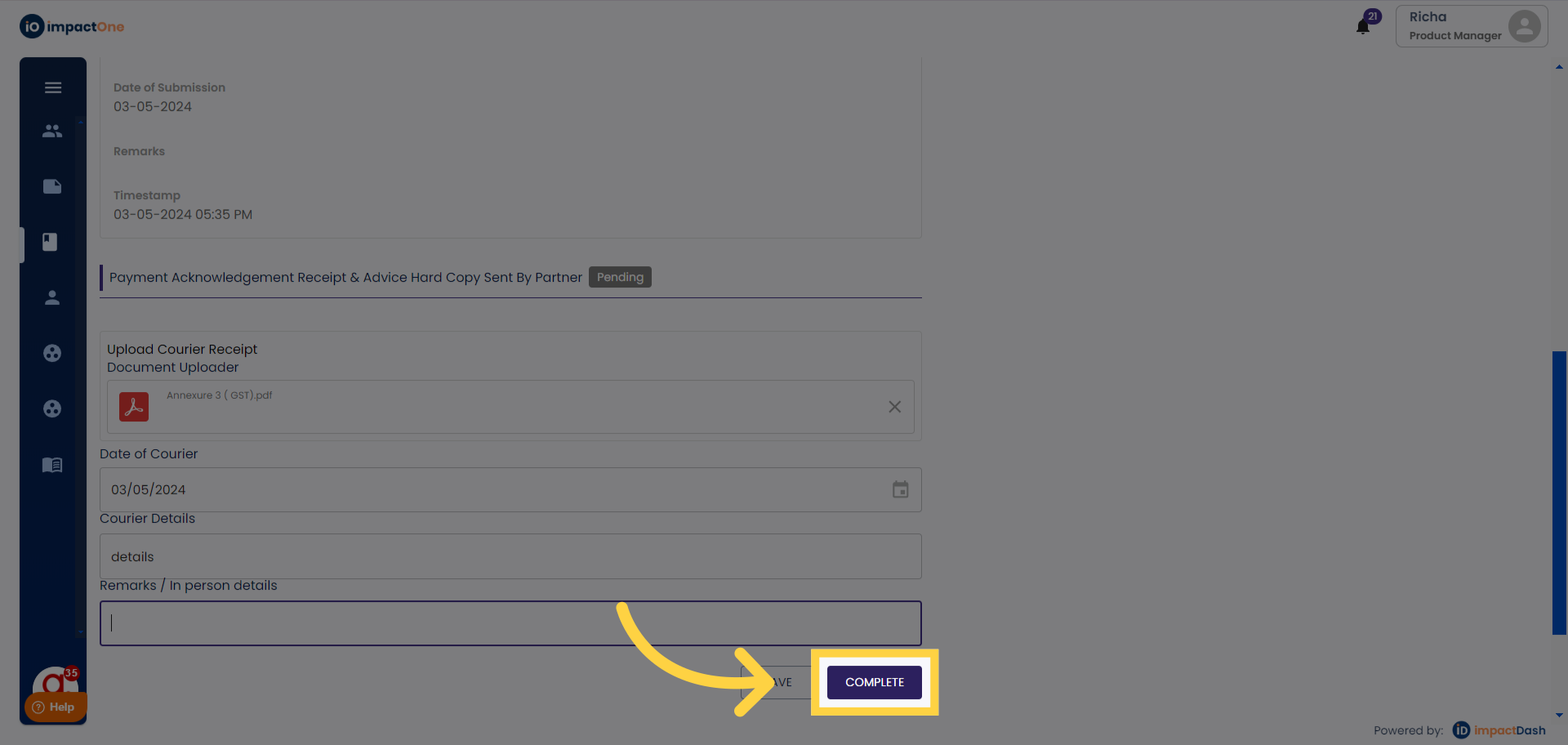
Confirm Action: Click on 'complete' to confirm the action.
User : Maker
Step 6: Usage Certificate.
a)Usage/Tranche Utilisation Certificate Detail By Partner
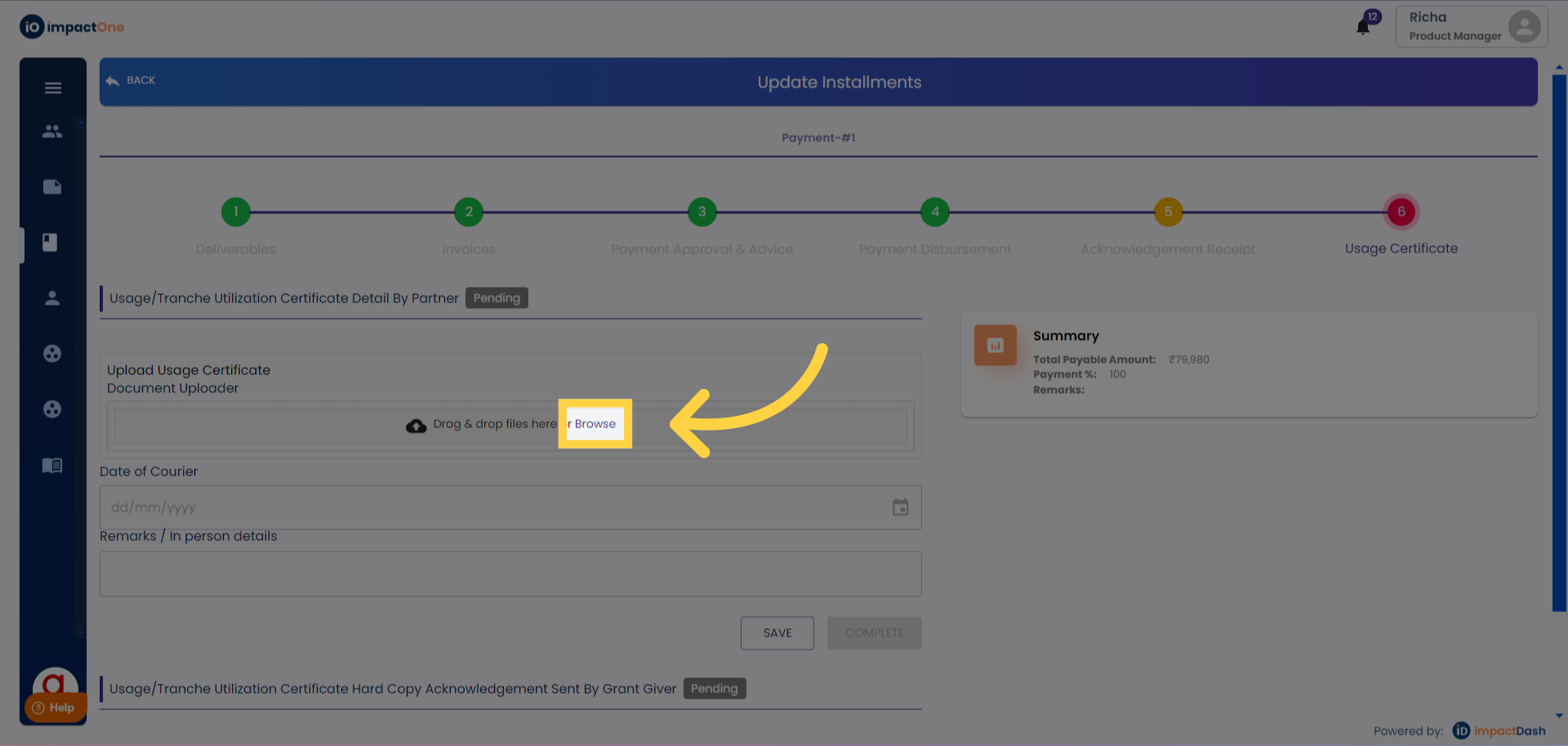
Upload Certificate: Drag & drop document to upload the usage certificate of the installment.
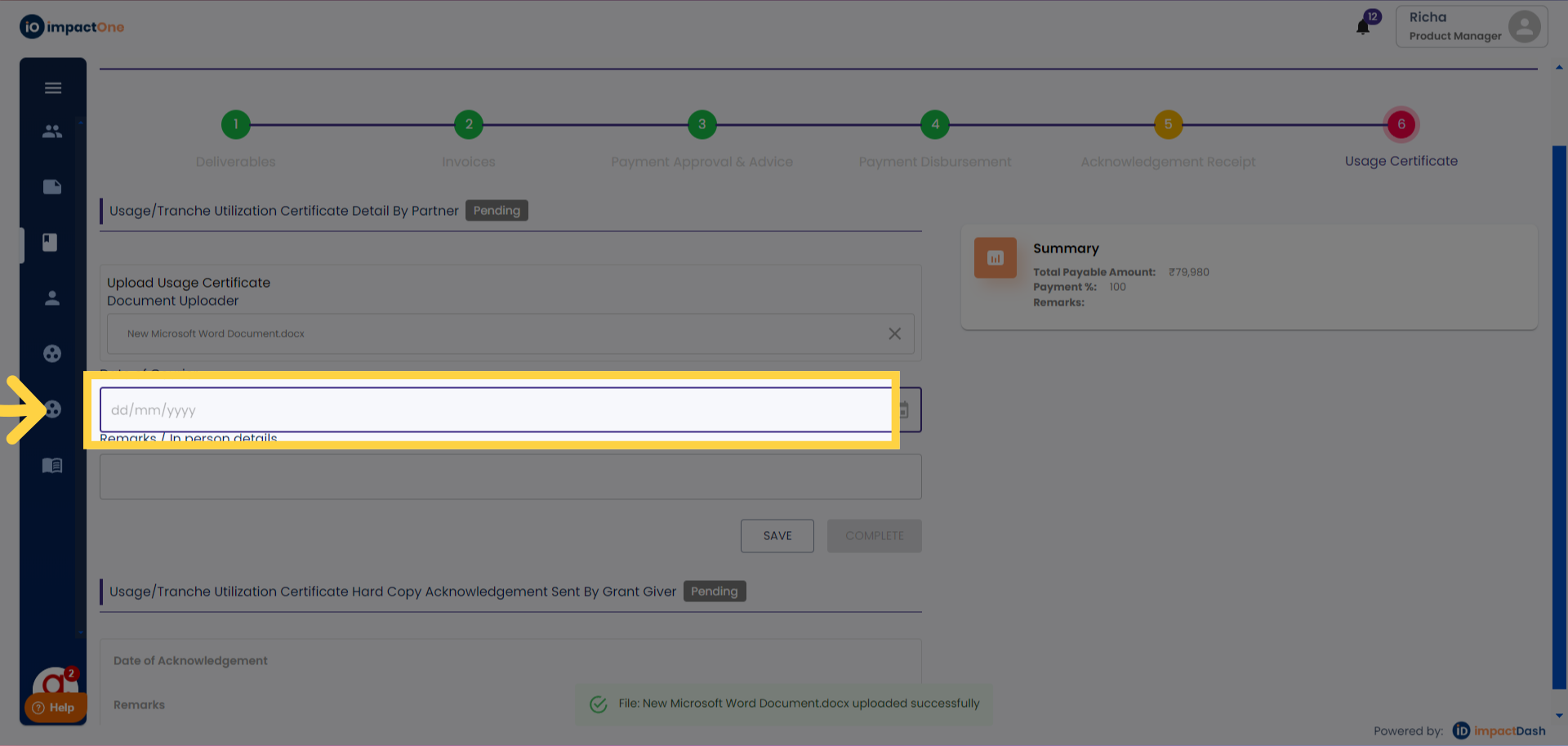
Add Date: Add date of submission.
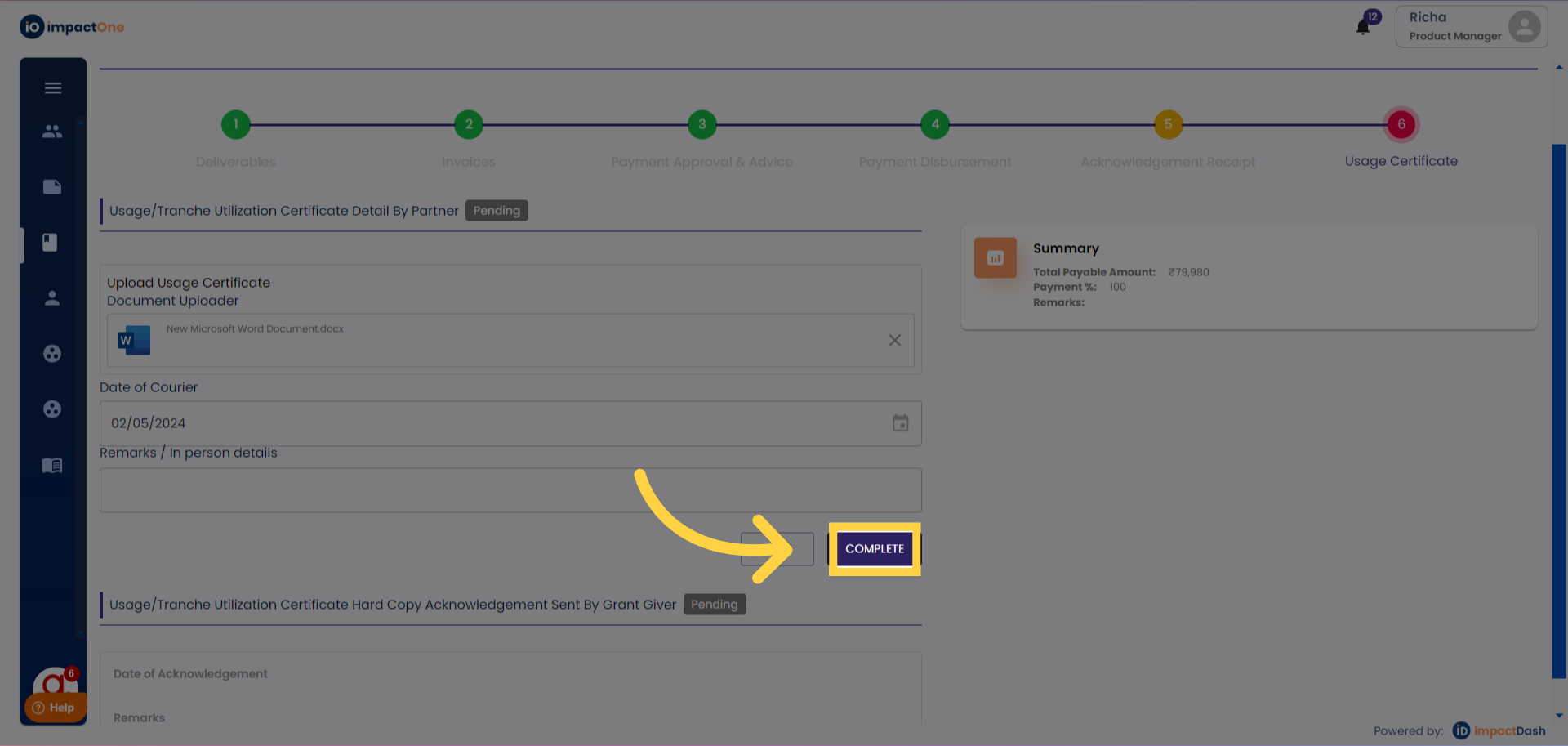
Confirm Action: Click on "complete" to confirm the action.
Once all the steps are completed, the Financial steps turn into green and are considered as a complete payment.
Note: Legends ‘i’ tab helps you understand the status of your payment with colour gradations