Basic information
User: Partner(maker)
Welcome to the ImpactOne Partner Onboarding Guide! Here's a step-by-step walkthrough to help you onboard a new partner organisation seamlessly:
Due diligence of an implementing partner involves thoroughly evaluating their capabilities and reliability to ensure they can effectively execute project tasks. It's essential for mitigating risks, ensuring accountability, and safeguarding project interests by verifying the partner's capacity, resources, and integrity. This process minimizes the likelihood of project delays or failures and maximizes the potential for success and desired outcomes.
1.Sign In: Begin by signing in to your ImpactOne account to access the onboarding process.

2.Navigate to Organisations: From the menu on the left side of the screen, click on "Organisations" to access the organisation details.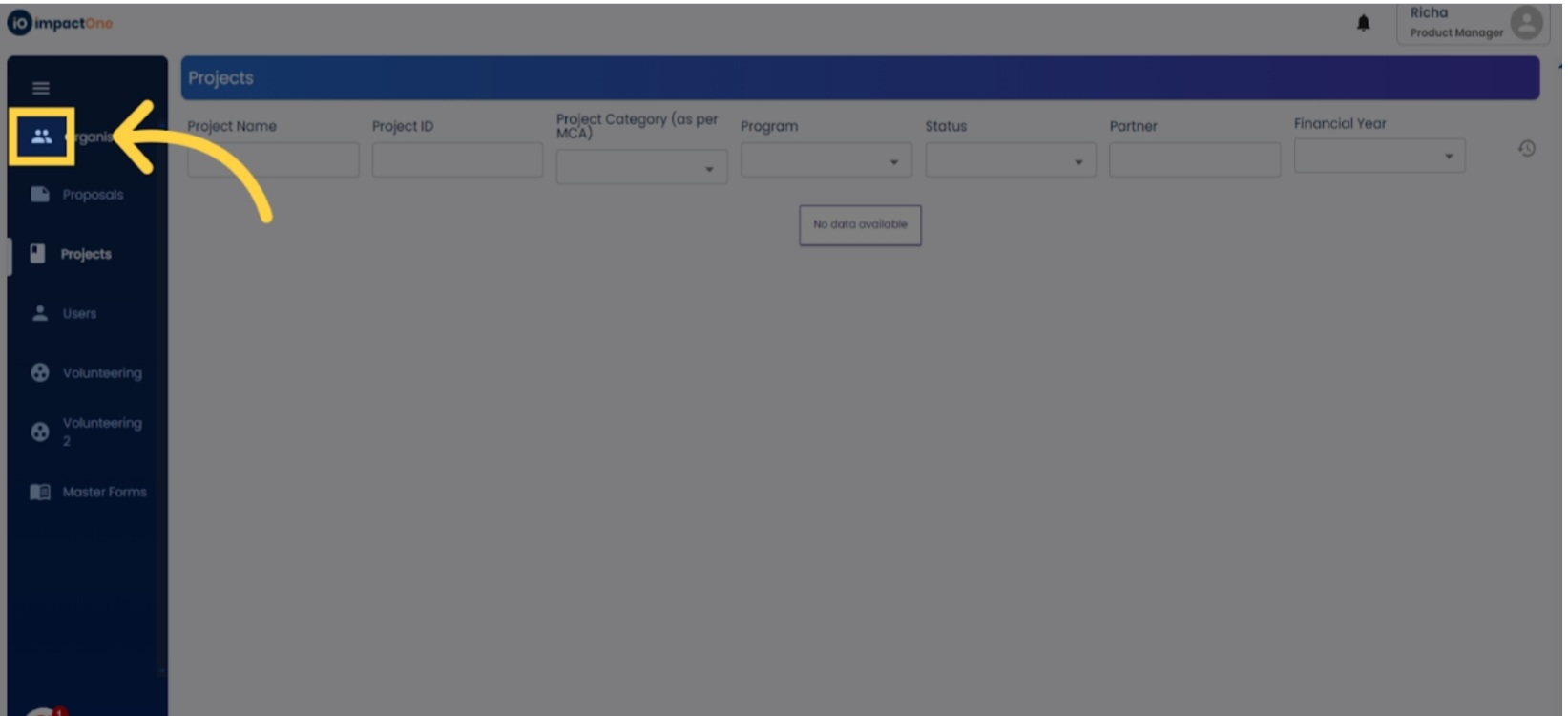
3.Access Basic organisational Information: Once on the Organisations page, click on the "Edit" button located on the top right corner of the screen to enter data regarding your organisation.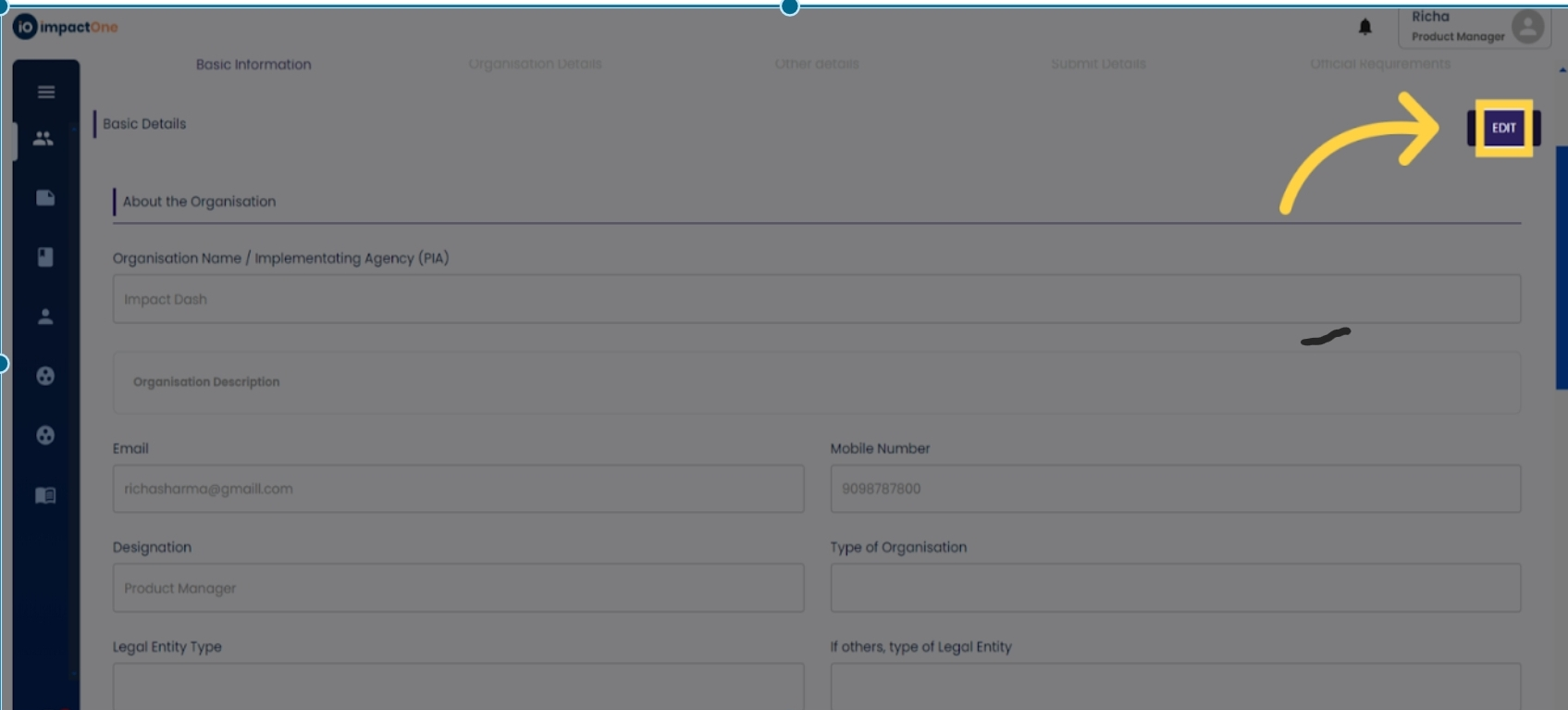
4.Enter organisation Description: Provide detailed information about your organisation in the designated organisation description box.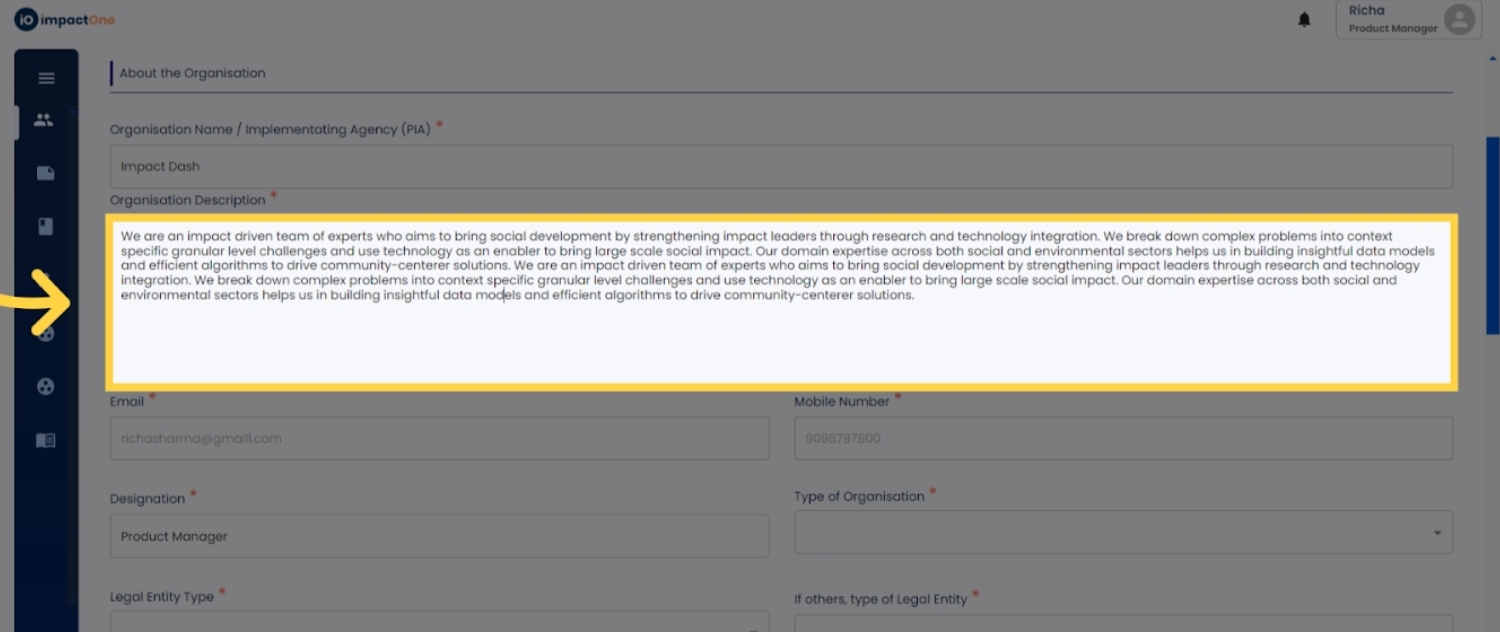
5.Select organisation Type: Choose the type of organisation, and if it's a non-profit, fill in the CSR number, along with relevant documentation and registration date.
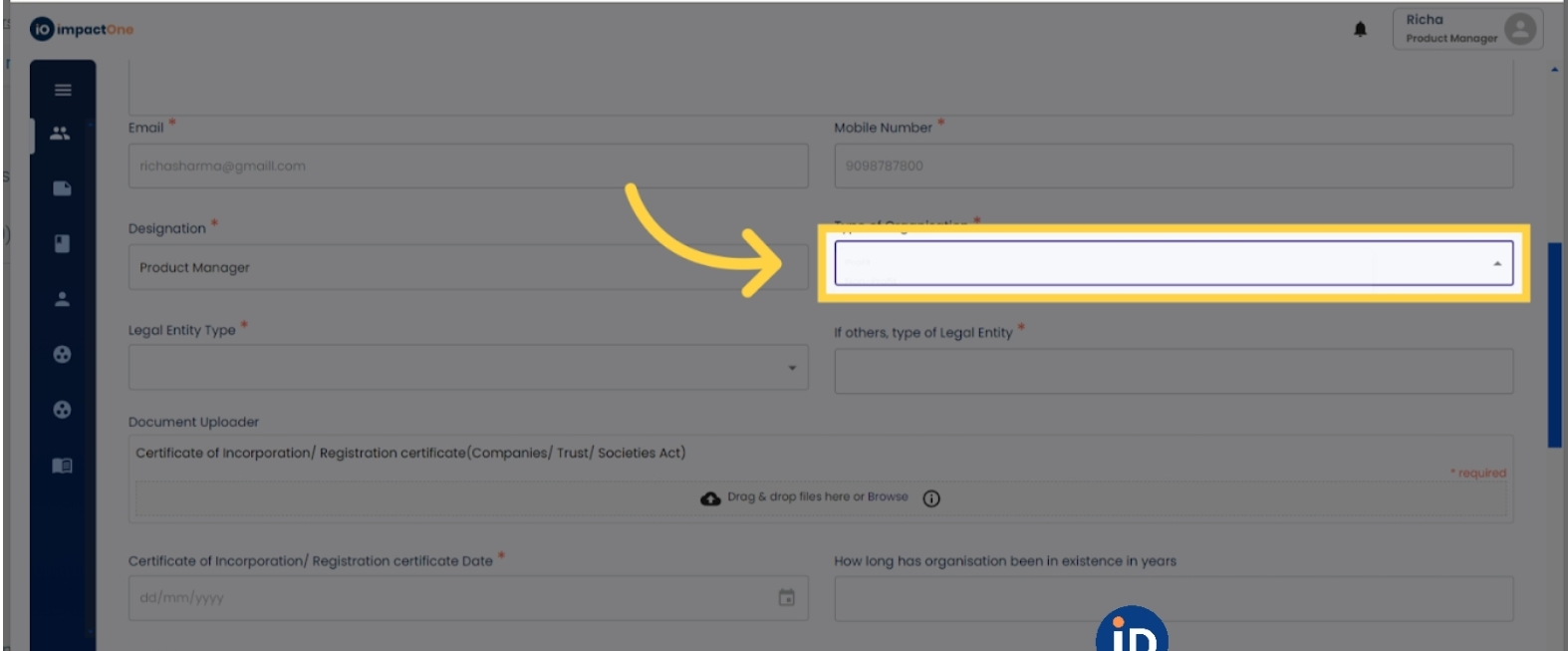
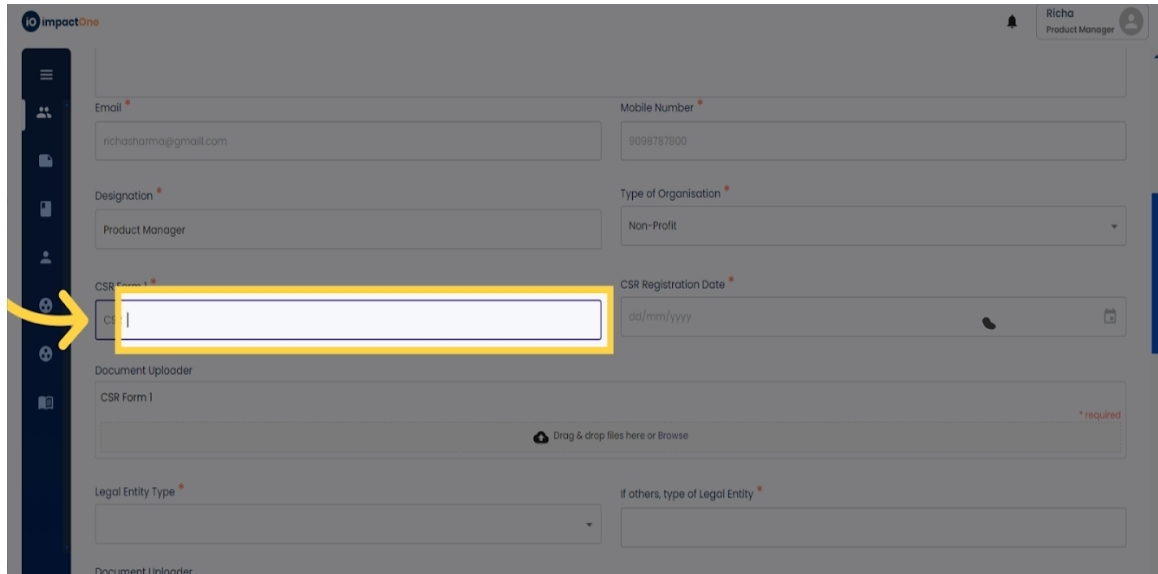
6.Enter CSR details: Add the CSR number, when non-profit is selected, enter the CSR number, registration number and CSR document.
7.Select Legal Entity Type: From the drop-down menu, select the legal entity type that best describes your organisation.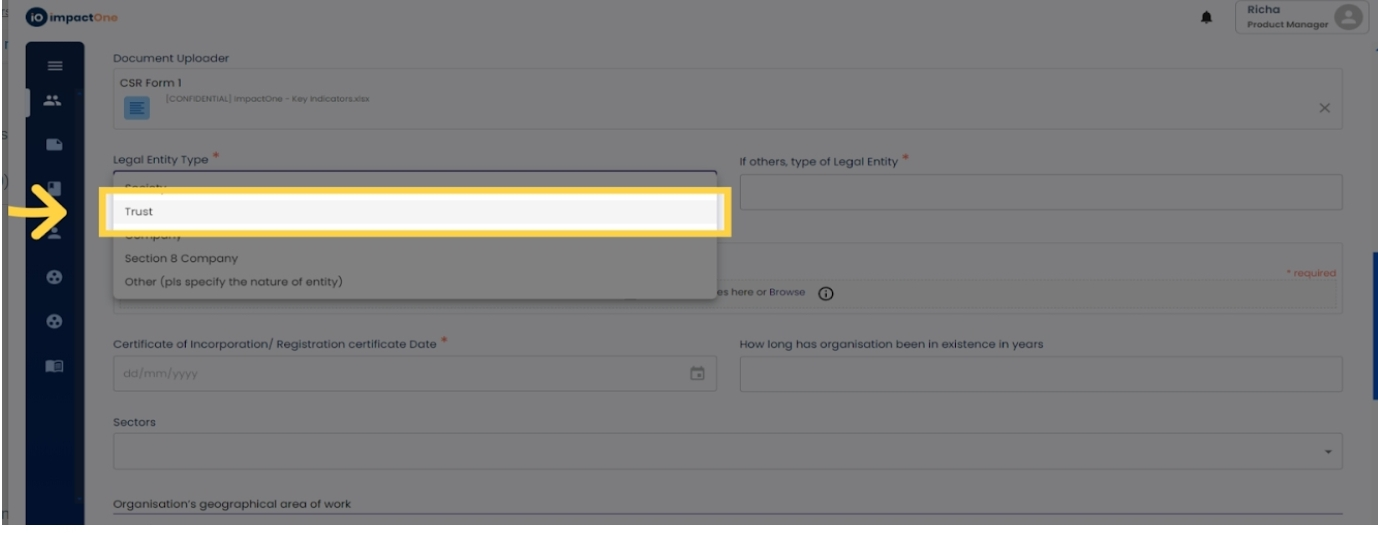
8.Upload Certificate of Incorporation: Upload the certificate of incorporation document along with the date of registration.
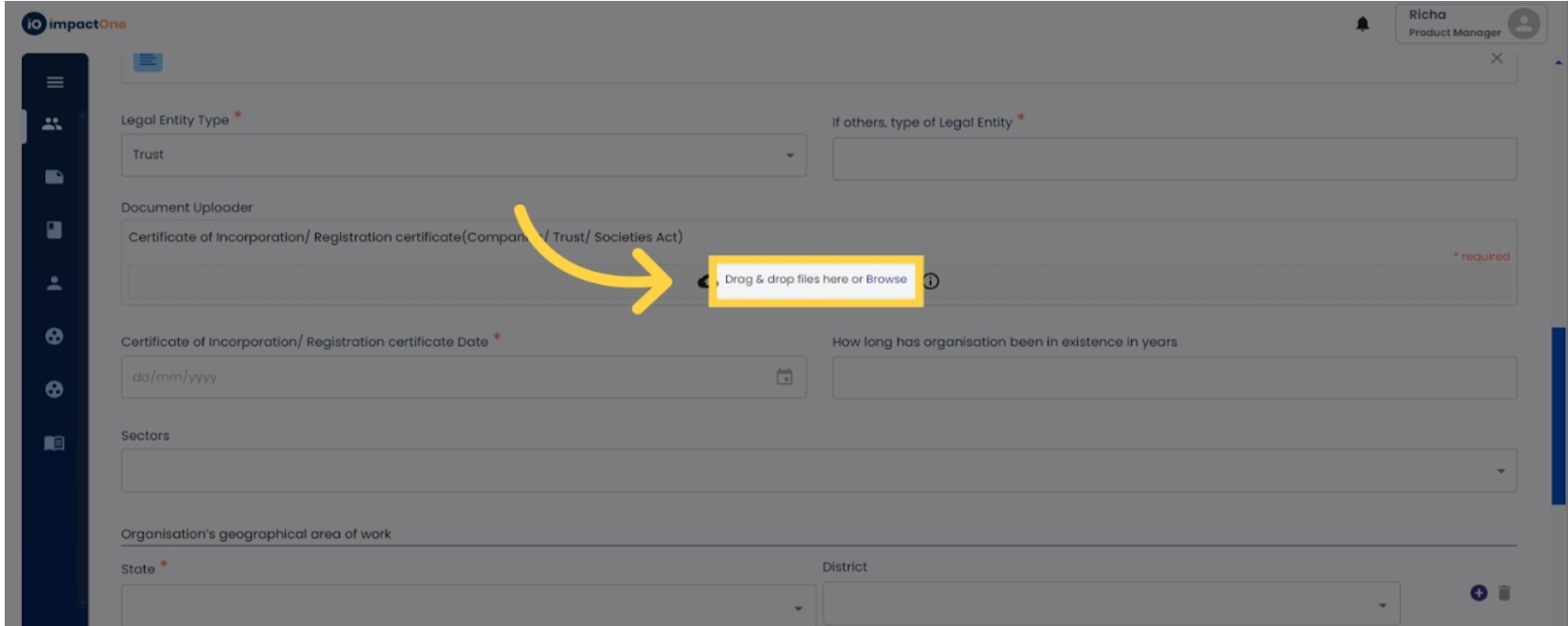
9. Select Sectors and Date of incorporation: Indicate the sectors in which your organisation operates.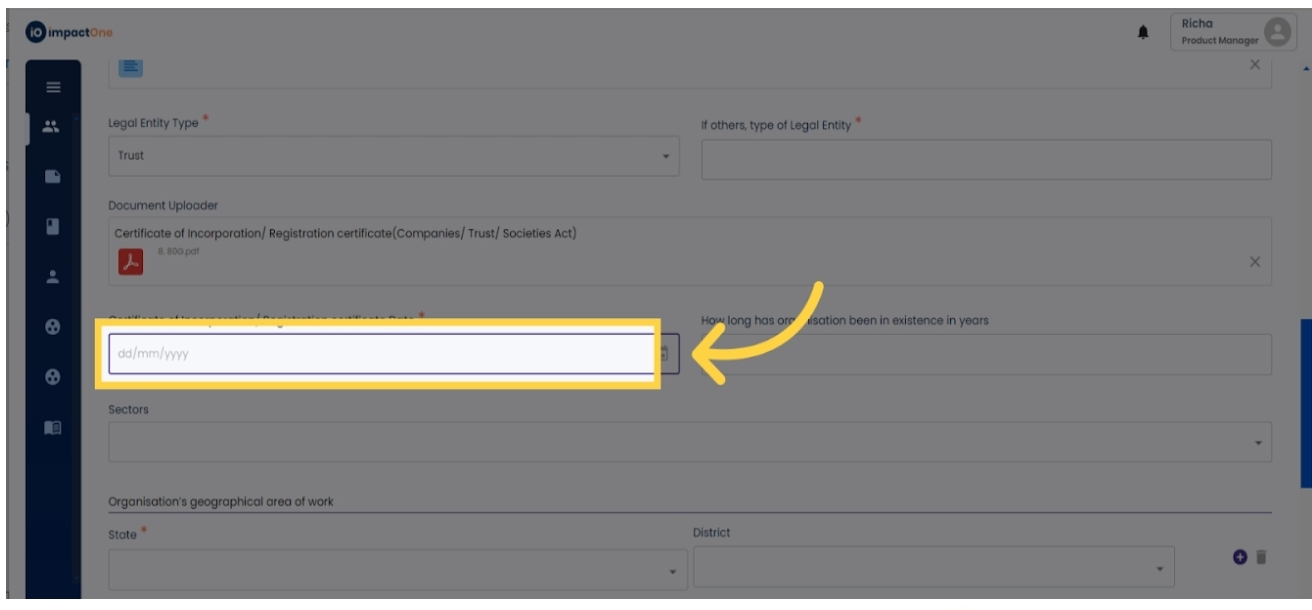
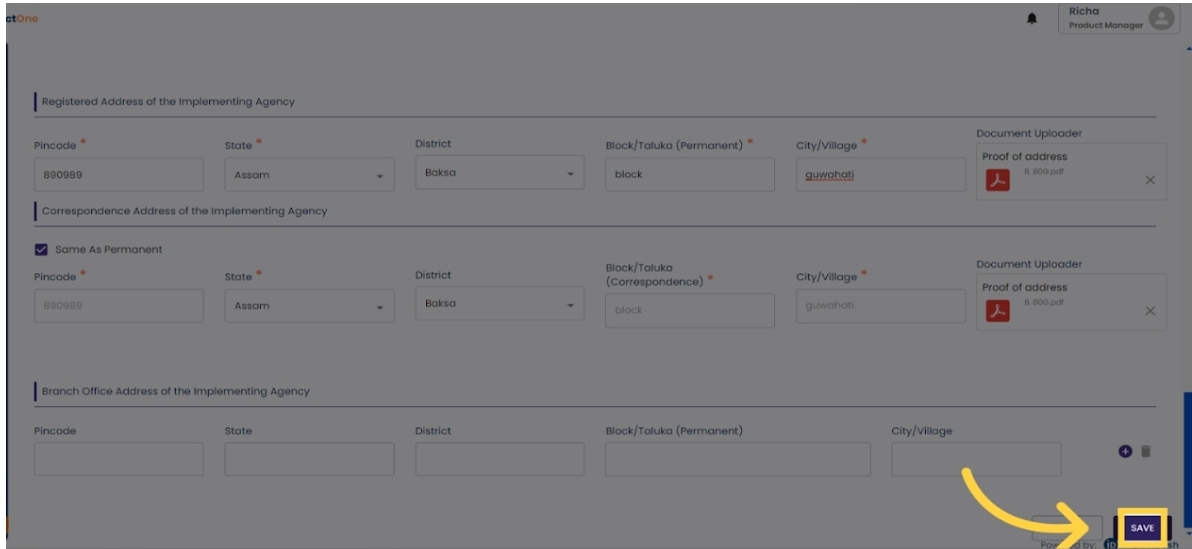
10. Add organisation Address: Enter the organisation's address along with proof of documentation. If the corresponding address is the same, simply tick the box to copy it. Select the state, district and add to document.
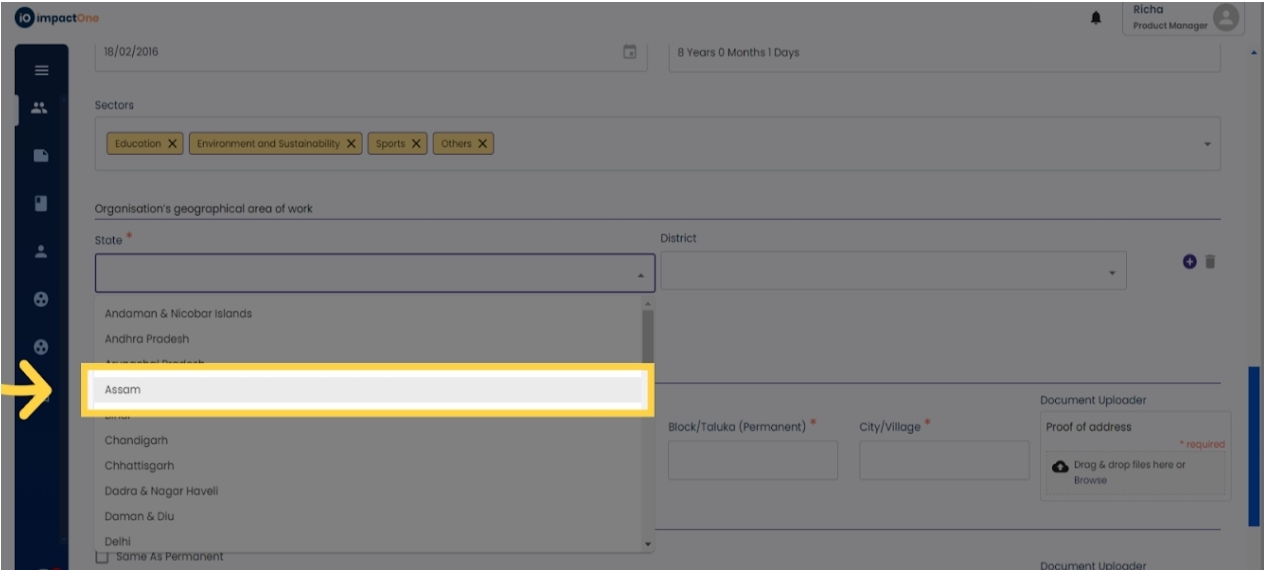
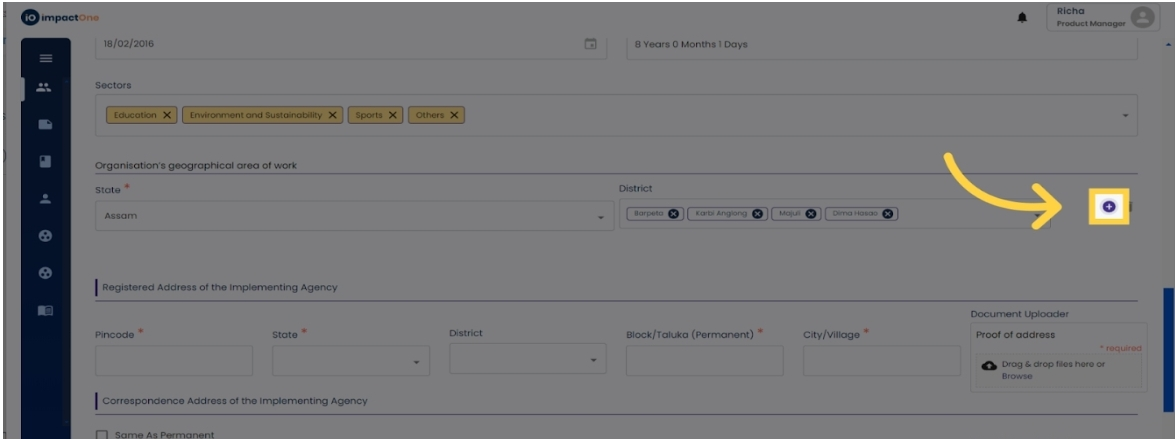
11. Add multiple: Click on the “+” to add multiple addresses.
12. Add Branch Office Address: If your organisation has multiple branch offices, click on the "+" sign to add
each one.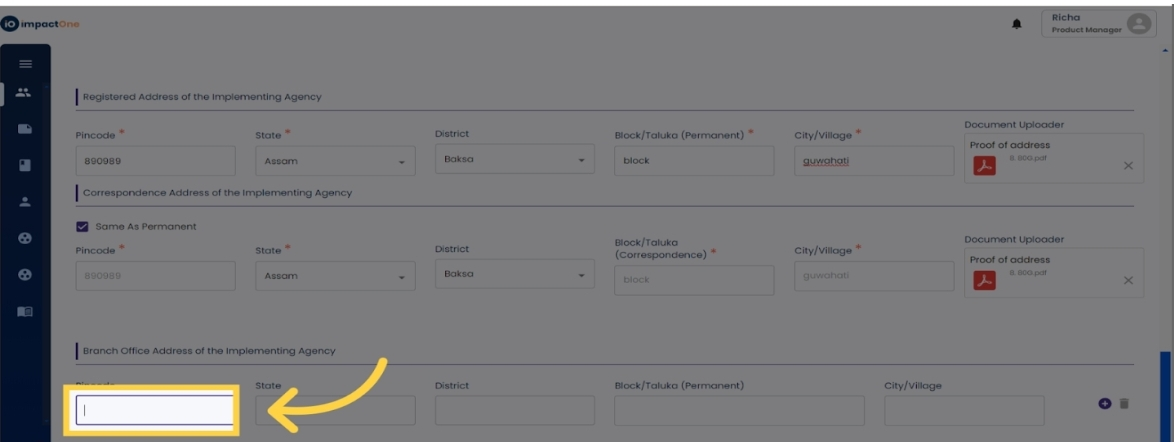
13. Save and Proceed: Once all details are entered, click on the "Save" button and proceed to the next step in the onboarding process.